
Licenses Management
The main Licenses panel lists all plugins or membership licenses. If you have expired or retired product licenses, they will be listed on the Licenses Archive panel. Depending on your licenses, the Licenses panel can display several tabs: Active, Upgrades, Renewals and Subscriptions.
List of Licenses
The main element of the Licenses panel is the list of licenses. For each license, you have information about the plugin or the membership, license code, license status, and domain limit, invoice code, type of license, activation, and expiration information. And links to the plugin home page, knowledge base, and support forum. If your license is a subscription, you have a hidden area you can show with a button to see the information related to the MyCommerce payment processor.
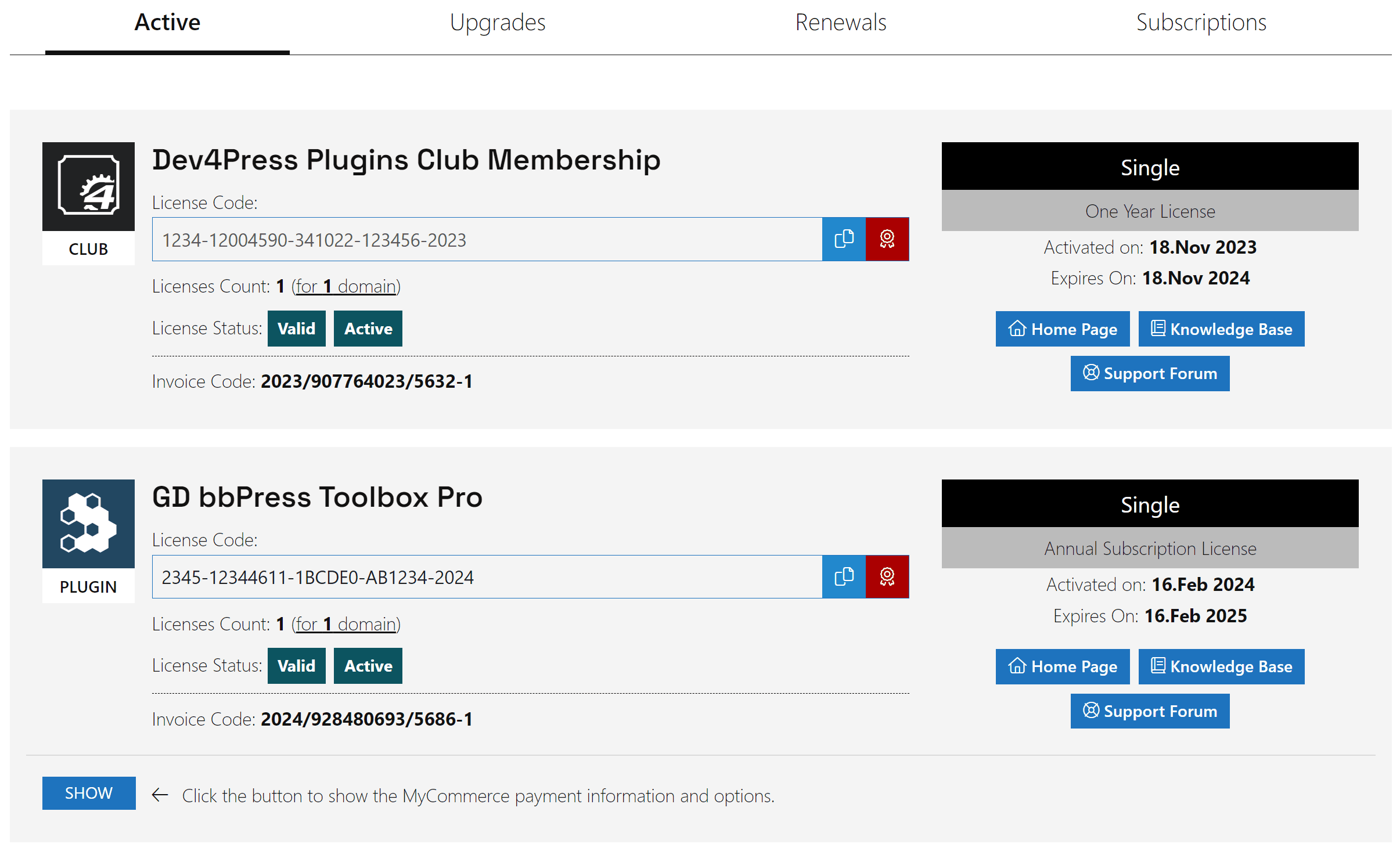
The license Code box shows the license code, and it has two buttons: a blue button to copy the license code to the clipboard (so you can easily paste it somewhere else) and a red button to open the license code management panel.
License Code Management
Not all plugins require license code activation. But for the plugins that do, the activation process is very simple. The plugin that needs license activation will show the license requirement after it is installed on the plugin dashboard. Via plugin Settings, the first settings panel will be License Code. When you open that panel, you will see a simple form with an empty field to paste the license code.
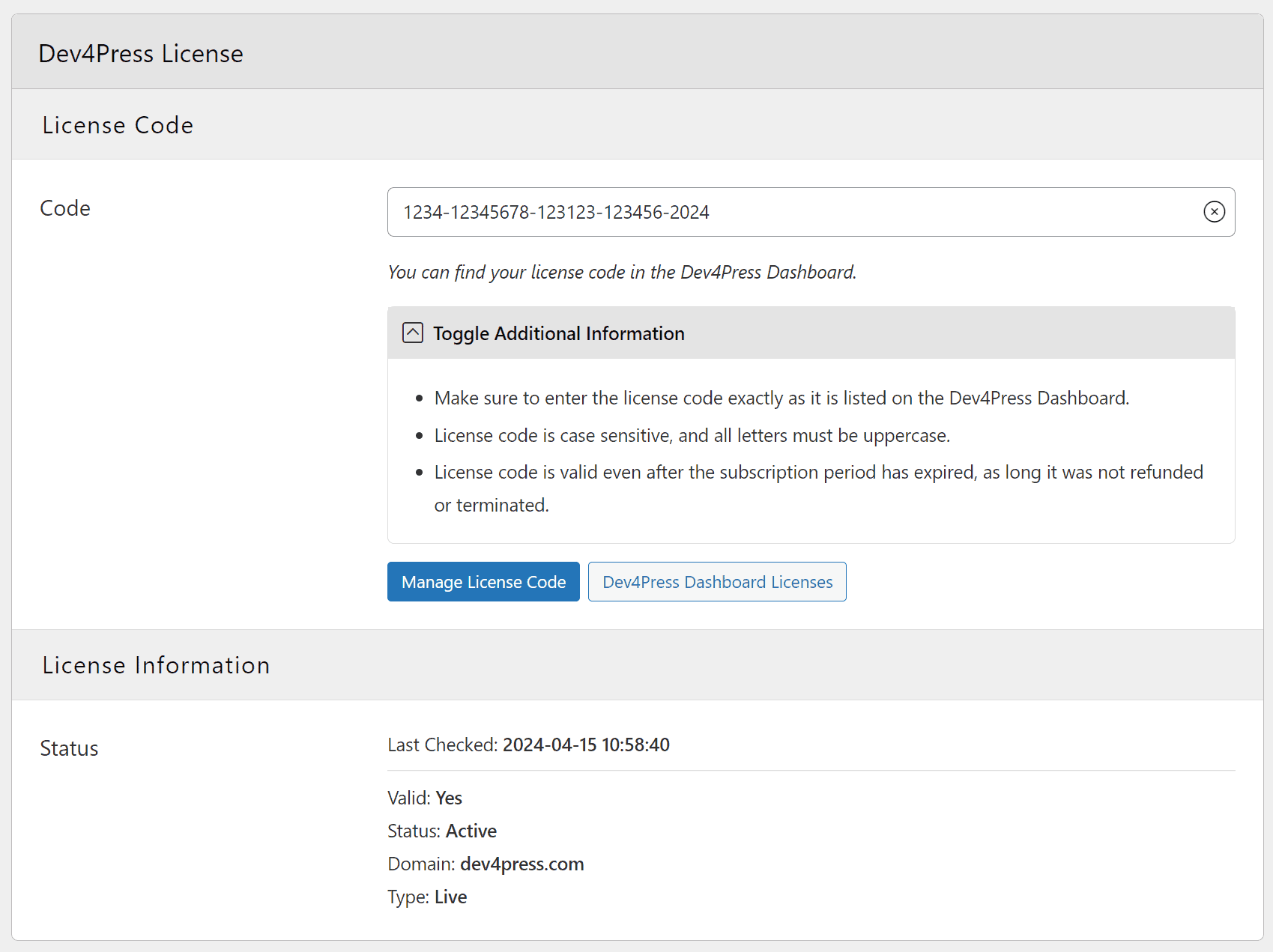
Once you paste the license code and click the button to save settings, the plugin will initiate the license validation. This is done in the background and can take a few seconds to finish. Once the validation is done, you will see the status on the settings panel. If the validation fails, you will see the reason for that. The reason can be the limit of the license code activations, an invalid code, or something else.
Upgrade Existing Licenses
You can upgrade one or more of your existing licenses from this tab. Since licenses are limited in the number of domains they can be activated on, if you have a ‘Single’ license and need to use the plugin on a few more websites, you don’t need to buy a new license; you can upgrade an existing one from this panel.
There are several types of upgrades available. Each upgrade gives you a prorated discount for existing licenses, which will be applied to the upgraded license. The prorated discount depends on the remaining time for the renewal or subscription licenses. For lifetime licenses, the prorated discount is the full price you paid for your license.
Dev4Press Plugins Club Membership
If you have any membership, plugin, or addon license, you can merge all of them and upgrade them into one new Dev4Press Plugins Club Membership license. If you have purchased several plugins and you have few licenses but want to consolidate all of them under the Membership license and maybe expand the number of domains for the new licenses, all the licenses you have will be listed.
For instance, the image below shows you have 3 licenses: Club Membership and two plugins licenses. Now, yu want to get Dev4Press Plugins Club Membership ‘Freelance’ license for 3 websites. Your upgrade screen shows each license with prorated discount (based on the time remaining on the license).
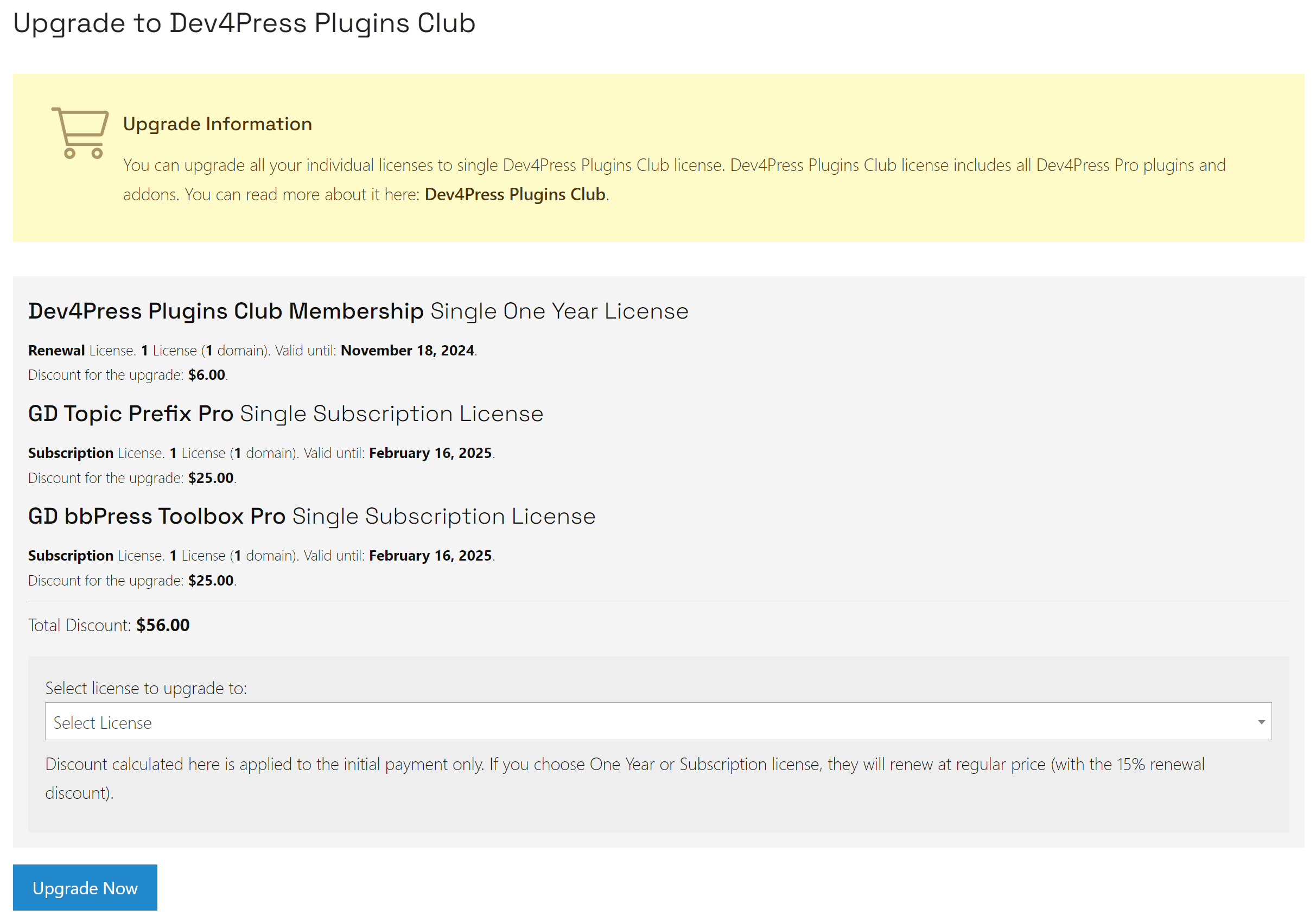
Under this list, you see the total Discount value, and the dropdown allows you to select the license to upgrade to. Select from that list the desired Freelance license (Subscription, Renewal, or Lifetime), and you will see the amount you must pay with the discount included. If you click the Upgrade Now button, you will go to the checkout page with the discount applied. Once the purchase is completed, a new license will be in your licenses panel, and all the upgraded licenses will be deactivated.
bbPress Plugins Club Membership
If you have a bbPress Plugins Club Membership license and/or individual plugin licenses for plugins that are part of the bbPress Plugins Club Membership (all the Pro plugins for bbPress), you can merge all of them and upgrade them into one license. This works as the previous example, but it is only for the bbPress Plugins Club Membership and plugins that are part of that membership.
Rating Plugin Club Membership
Similar to previous license upgrades, this covers Rating Plugin Club Membership, GD Rating System Pro, and all the Pro addons for the GD Rating System Pro plugin.
Individual Licenses
This is the simple upgrade method: You can upgrade any individual license to something else (including Membership licenses) without merging multiple licenses into one.
Renew Licenses
If you have limited one-year licenses that are not subscriptions, you can renew them anytime from this panel. Select one or more licenses for renewal, and click the Renew Now button, and you will be directed to the checkout. Whenever you decide to renew, the new one-year period starts from the license’s expiration date, not the purchase date, even if you renew earlier.
Manage Subscriptions
From this panel, you can cancel any of your subscription licenses. Once canceled, the license remains active until the original expiration date and will not renew after that.