
Website Cleaning and Sweeping

The core of the SweepPress plugin is the Sweep panel where you can see all the registered sweepers, review all the information, get additional help about each sweeper, and run the sweepers.
SweepPress will not register every included sweeper, because some sweepers have requirements. If the requirements are not met, the sweeper will not be loaded. So, if you don’t have Gravity Forms plugin, sweepers related to Gravity Forms will not be loaded at all; if you don’t have any plugin using Action Scheduler database tables, related sweepers will not be loaded.
List Of Sweepers
Panel Interface
Sweep Panel shows all the available sweepers. Every sweeper belongs to a category, so the category for sweepers will be displayed first.
Top of the page shows count of action vs total sweepers. Total number refers to number of currently loaded and registered sweepers, and Active number refers to number of sweepers that have something to sweep (estimation higher than zero). Beside these counts you have the Eye icon, and clicking this icon will reveal inactive sweepers along with the active sweepers.

By default, only active (sweepers that can remove some data) are visible. Each sweeper shows title of the sweeper, several button icons and the list of sweeper tasks. Each sweeper can include multiple tasks, or just one task. Sweepers having multiple tasks usually are related to posts – and each post type is individual task, allowing you to remove data only related to a selected post type.
Additional Sweeper and Tasks Information
Some sweepers have the ‘Days to Keep’ settings, allowing you to not estimate or remove recent data. For example, if you have spam posts or comments in the database, and the ‘Days to Keep’ is set to 14 days, plugin will ignore all the spam posts or comments made in the last 14 days. This allows you to reevaluate your website content later on, and protect recent the data from removal. For sweepers that have days to keep option, plugin will show that information inside the sweeper box.
The list of tasks shows relevant information for each task, and for some sweepers it also has a Preview Data button allowing you to preview subset of data related to a specific task.
Not all sweepers have previews at this time, and this will be expanded in the future versions!
Sweeper Control Buttons and Indicators
As for the icon buttons each sweeper has, they are very useful to reveal additional information:
- Toggle Help button: This button will reveal a section under the title where the sweeper description and additional information is revealed, including when was the last time that sweeper was used.
- Toggle Affected Tables button: This button will show the list of database tables affected by the sweeper. Some sweepers are affecting single table, but many tables will remove records from multiple tables at once. If you remove post related data, it will remove postmeta data, and comments related to the deleted post.
- Toggle Empty Tasks button: This button is available for sweepers that have more than one task, and will show tasks that are hidden because they are empty.
- Toggle Limitations button: This button will show information about the sweeper limitations, including what types of sweeping will be able to use the sweeper. Some sweepers can be run only via Sweep panel, and will not be available for Auto or Quick sweeping.
- Data Backup sign: This blue icon is not a button, just an indicator about sweeper can be used to back up data into the SQL export files.
- High System Requirements sign: This red icon is not a button, just an indicator about sweeper having high system requirements. This means that with big websites, sweeper can take long time to estimate or remove data.
- Preview Data sign: This blue icon is a button that will open some other panel to preview the data that sweeper will remove.
Sweeping Process
There is no option to auto select all the sweepers all at once. You need to manually check which sweepers you want. This is done on purpose, so you will make the informed decision about what you want removed. There is a checkbox for every sweeper that will select all the tasks for that sweeper.
Once you select what you want to remove, box on the left side shows number of tasks selected, and estimated number of records and data size that will be removed. When you click on the Run Sweeper button, plugin will send the sweeping request, and after few seconds, you will see the results.
Support for Large websites
The plugin has the ability to detect the size of the website, and for large websites, some of the sweepers can have queries for estimation that take a long time to complete. And, if you need to run multiple slow estimations, on some servers, page loading can time out due to the timeout settings in the PHP running on server. Plugin performance and estimation settings can be configured manually to.
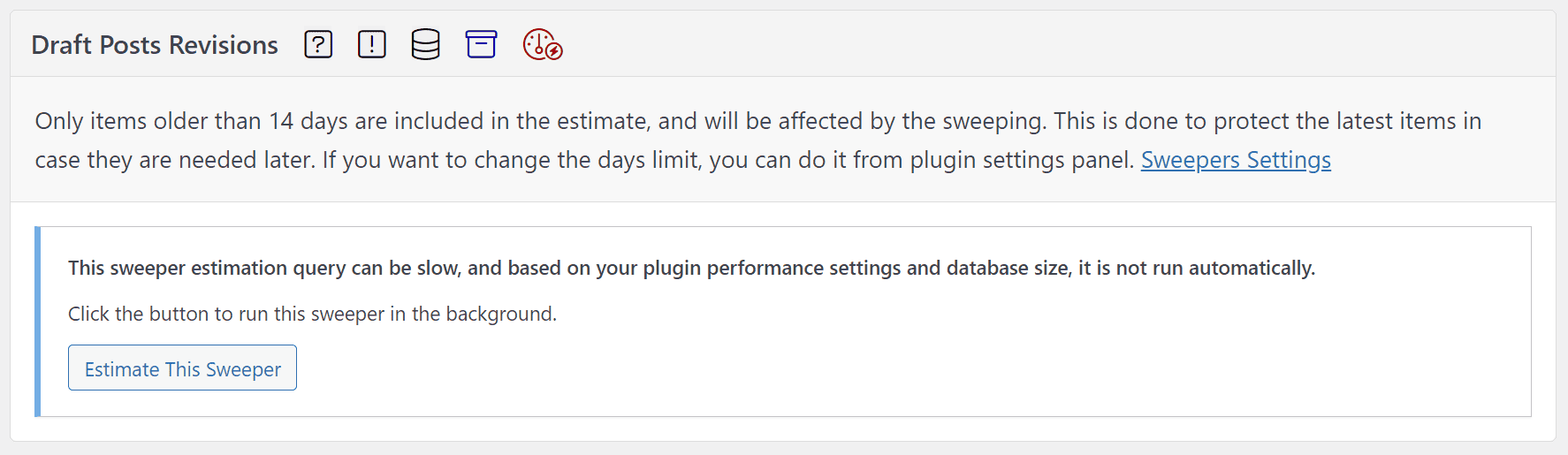
Anyway, if you have a huge websites where estimation queries take a long time, not every query for estimation is run as needed, but you can have them run on demand, and in that case, sweeper tasks, instead of tasks will show the button to run the estimation.
Important Notices
- How long the sweeping takes depends on the number of selected sweepers and the database size. The larger the data set that needs to be removed, it takes more time.
- If you have a large database (5GB+), it is best to run sweepers one by one and avoid timeouts during the process.
