
License Activation
BreadcrumbsPress Pro uses a license key to activate its premium features for your site. The free Lite edition does not require a Pro license. Install and activate the Pro plugin first; see Install & Update if you need the installation steps.
Find your license key
Use the license key supplied with your purchase. You can also check the account associated with the purchase for your license and Pro download. Keep the key private and use a license with an available site activation.
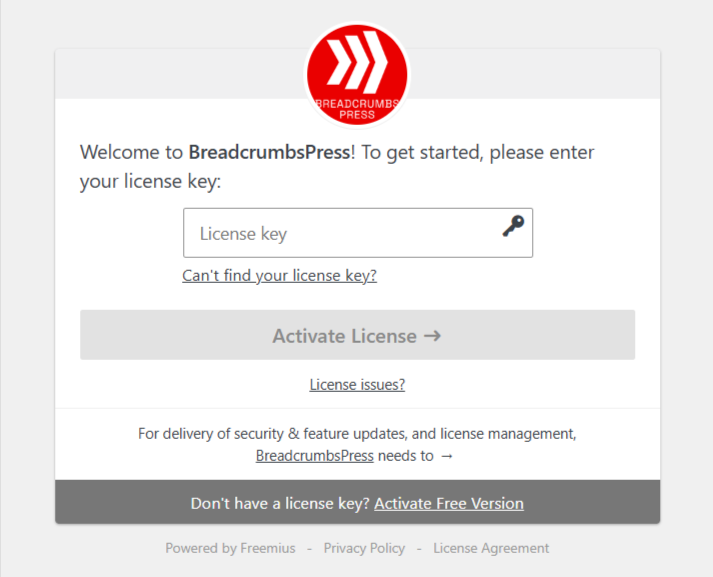
Activate during setup
- After activating BreadcrumbsPress Pro in WordPress, follow the license activation prompt if it appears.
- Enter your license key and select Activate License.
- Follow any additional prompts and wait for confirmation. If the BreadcrumbsPress installation completion screen appears, select Click here to continue.
Activate or change a license later
Open the BreadcrumbsPress Account page in WordPress. Select Activate License, enter the key, and complete the prompts. If a license is already associated with the site, the action may instead be labeled Change License. The available actions can vary with the account and license state.
After activation, check the Account page for the license information and open the Overview dashboard to continue setting up breadcrumbs.
Deactivate a license
To move a license to another site, open the BreadcrumbsPress Account page on the old site and use Deactivate License. Confirm the action when prompted, then activate the license on the new site. Deactivating the license disables premium features on the old site; it is separate from deactivating the WordPress plugin.
If activation fails
Check the message on screen and confirm that you entered the complete key for BreadcrumbsPress Pro, that the license is valid, and that an activation is available. Check that the site can communicate with the licensing service, then retry. If the problem continues, contact support with the error message and site details; do not share your license key publicly.