
Antispam for Gravity Forms
How the Antispam works with Gravity Forms
Plugin hooks into the Gravity Forms spam check filter, and checks for spam entries only if the form has coreSecurity support enabled.
To get all the information about how the antispam works, which antispam methods are available, checkout the main Antispam article.
What happens with spam?
Every entry caught by the antispam filters will be saved as a spammed entry. Plugin is not deleting spam. Having spam still in the database is useful to faster detect future spam.
Gravity Forms Plugin Setup
For each form you want to be checked for spam by coreSecurity Antispam feature, you need to enable the coreSecurity support. To do that, from the Gravity Forms main Forms panel, open the Form Settings. At the bottom, plugin adds new box named coreSecurity Antispam with some basic information and the main toggle Enable Antispam protection by coreSecurity. Enable that toggle and the form entries will be checked by CoreSecurity for spam.
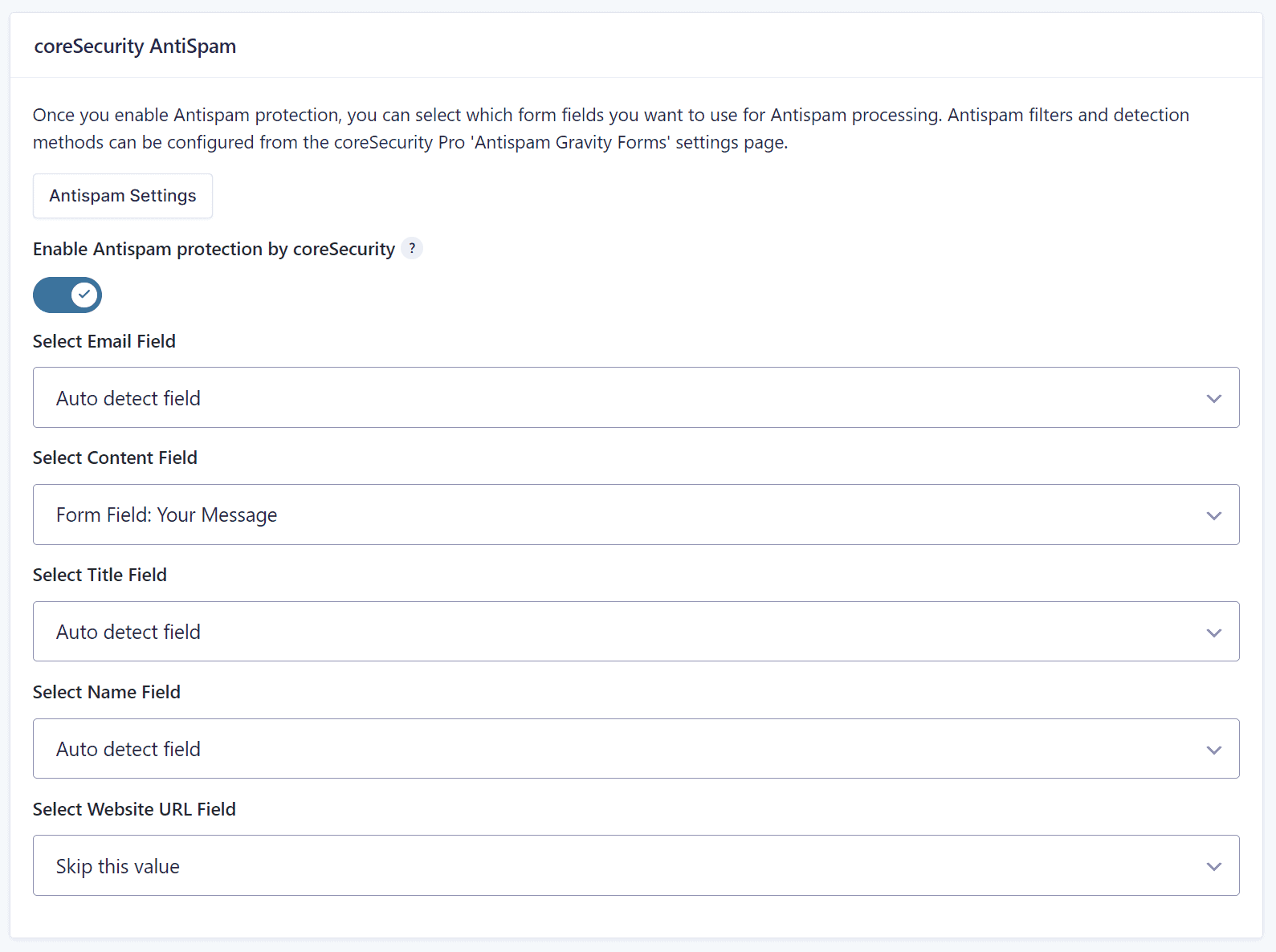
But, once the toggle is enabled, new set of options will appear, allowing you to mark which fields from the form will be used for Email, Content and other elements that Antispam can check. Each option can be disabled or left at Auto, for the plugin to choose the fields automatically. If you have more than one field for Email or multiple Text fields, it is important to select which will be used when checking for spam.
For most contact forms, plugin will be able to automatically detect relevant fields. But, for more complex contact forms, it can be useful to have the ability to select what Antispam should target.
Entry Integration
If you open any Gravity Forms entry (for the forms where coreSecurity Anti-spam support has been enabled), you will see a new metabox, as displayed in the image below.
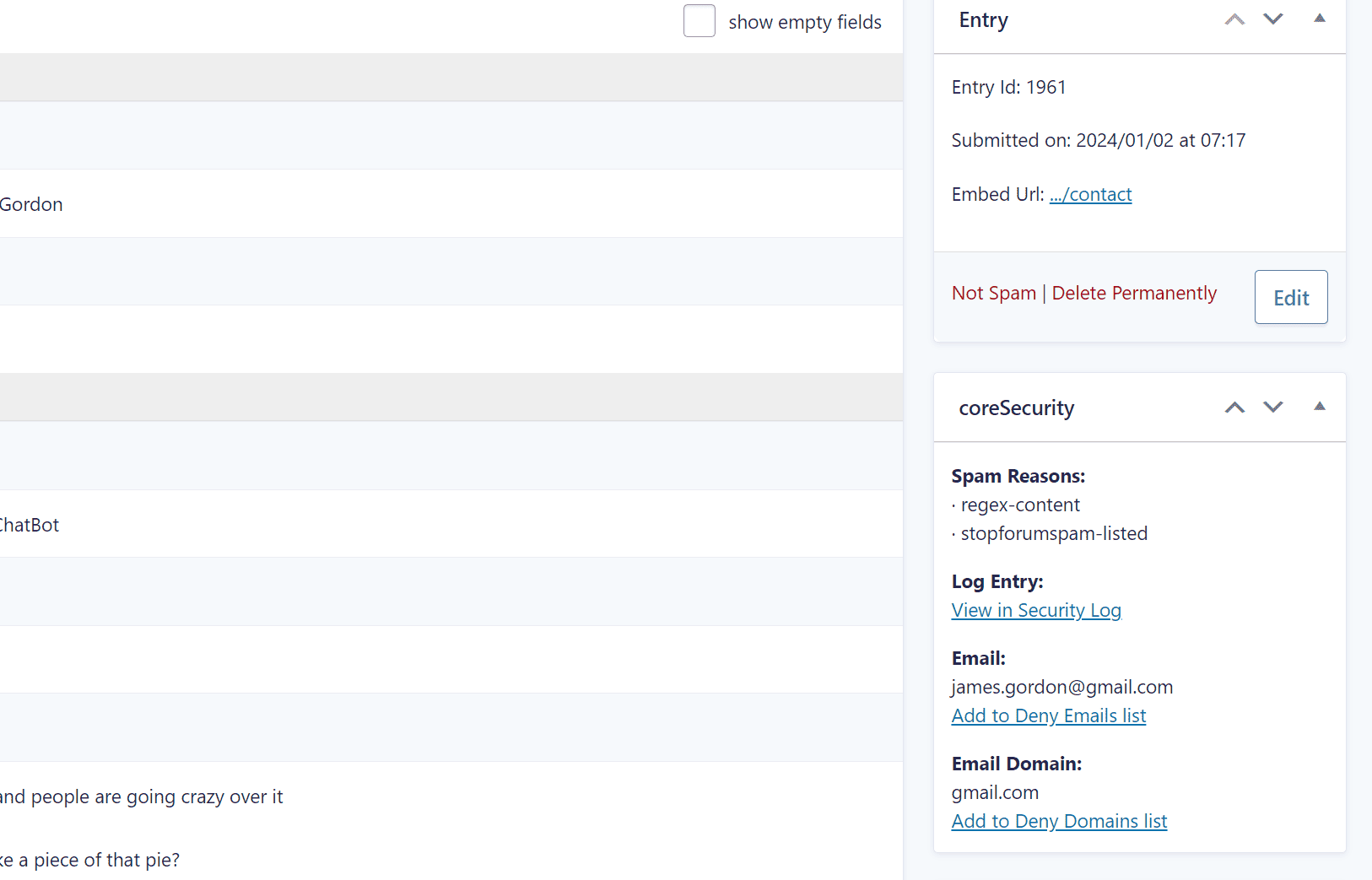
If available, plugin will show the information from the log: spam reasons – if the entry was spammed by the coreSecurity, and link to view this entry in the security logs.
And there are two more actions:
- Add To Deny Emails list: email used in the form will be added to the Dictionary under ‘Deny Email’.
- Add to Deny Domains list: email domain used in the form will be added to the Dictionary under ‘Deny Domain List’.