
Attachments
Attachments are the biggest feature of GD bbPress Toolbox Pro plugin and there are many things you can set up to make attachments upload suit your needs.
Best place to start with Attachments in GD bbPress Toolbox Pro, is the user guide dedicated to Attachments.
Add Attachments to Topics and Replies
This article will focus on feature settings and configuration.
Activation Settings
The main activation option is choice between Enhanced and Classic attachments form element. Enhanced is default, and Classic is included only for compatibility purposes, or as a basis for different customizations.
Attachments can be added to topics and/or replies, and you can select which user roles can upload attachments.
Integration Settings
Attachments integrate into many different parts of bbPress, into various templates, and you have some control over this.
First, you have to select position of the attachments upload elements inside topic and reply forms (for new and edit).
Uploaded Files List
List of uploaded files can be part of the post content, or outside the content wrapper. This maybe influenced by the theme customizations you use.

Files display mode allows you to show images as thumbnails, or as list, and you can choose thumbnails layout. Files are, by default visible to uses only, and you can choose usr roles that will have access.
When it comes to visitors, they can see the files, but they can also see previews only, no full files.
Other files list settings and tweaks include:
- Target set to blank page: All displayed attachments links will lead to open blank page to display attachment (for images or documents).
- Download attribute: Each link will have download attribute set, and for supported browser will force click on the link to download the file.
- Hide files inserted into content: If the attachment is inserted into content using [attachment] BBCode, it will be hidden from the list of attachments below the post.
- Skip files that are missing: It can happen that the file gets deleted from the storage, but it is still listed in the database. If that is the case, with this option, such file will not be displayed.
- Include file Type Icons: When attachments are displayed as a list, show icons in front of the file link for easier identification of the file type.
Images as Thumbnails Settings
If you have chosen to display images with thumbnails, you can set the size of the thumbnail image, displaying caption and inline ordering. You can also set custom CSS Class and REL attributes.
Finally, plugin can assign first uploaded image to topic or reply to serve as featured image. Theme needs to have support for post thumbnails enabled.
Upload Limits Settings
You can limit maximum size of uploaded files, and number of files that can be uploaded at once. Both values depend on the server settings too, and you should check the user guide for more information. Settings page also shows additional information about these settings.
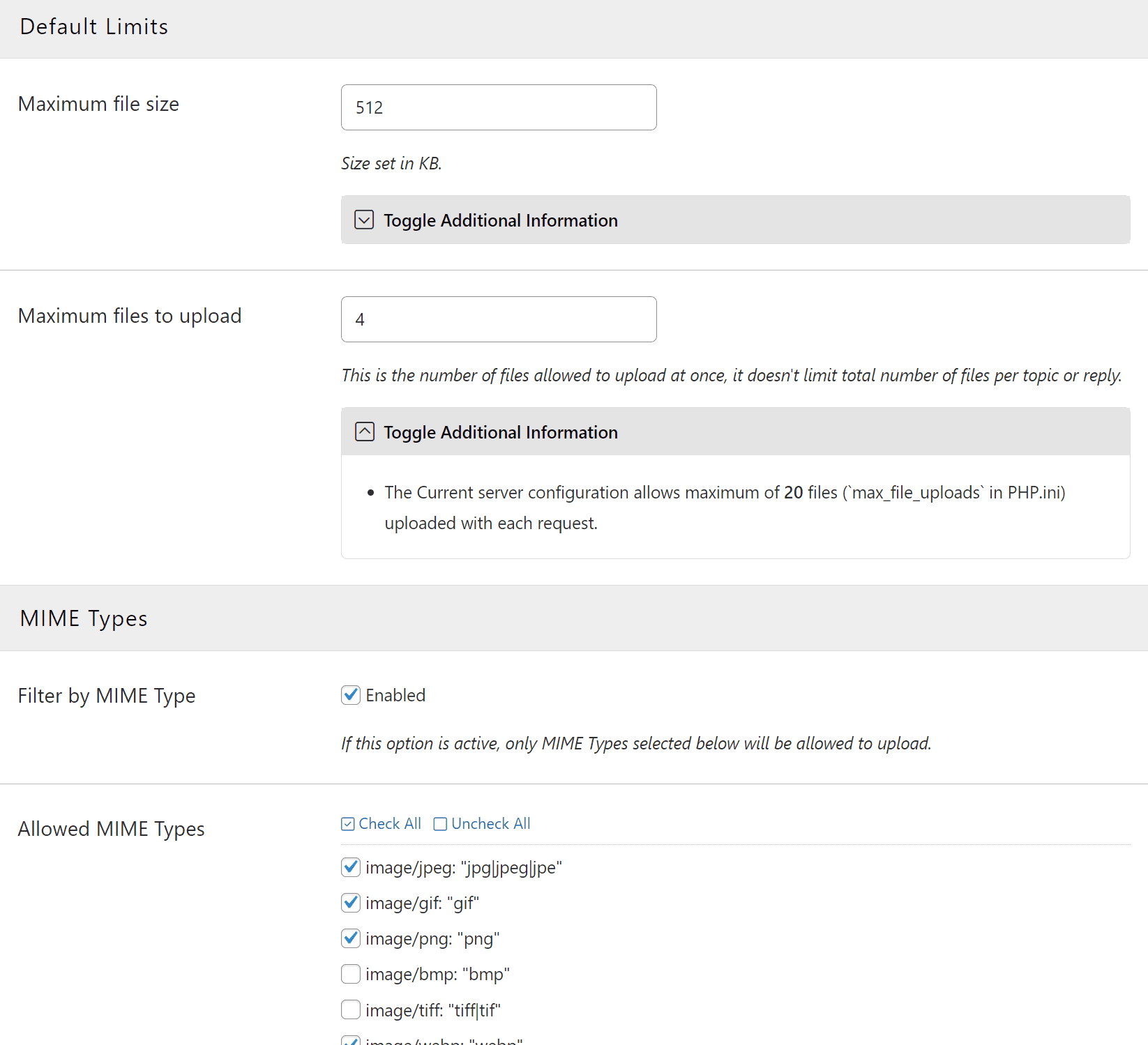
And, you can also restrict upload to some MIME types (or file types) only. To add more MIME types, you can use MIME Types feature. WordPress list of allowed MIME Types can be expanded or reduced using filter in WordPress too.
Upload limits can be disabled for selected user roles.
Enhanced Interface Settings
With these options you can control some aspects of the file upload form parts:
- Button to Insert into content: For each attachment, this button will allow you to have the attachment embedded in content after the post is created.
- Set caption for file: If the file has some generic name, users can set the textual caption to be used instead of the real file name.
- Auto-add new file: Hide button to add another file, and instead attaching a file, automatically adds new file control.
Additional Features Settings
Errors Logging
With these settings, you can log any error that happens during the upload. Errors can be visible too, to some users and post author. Panel Errors Log shows all logged errors.
Bulk Downloads
This is very interesting option allowing you to download ZIP archive with all files in the topic or reply in one go. This can be limited to users with selected user roles only.
Upload Directory
Since plugin uses media library to handle files upload, the files will be stored in the date based directories structure. But, GD bbPress Toolbox Pro plugin can change this structure for attachments only, to custom structure that can include forum or topics structures.
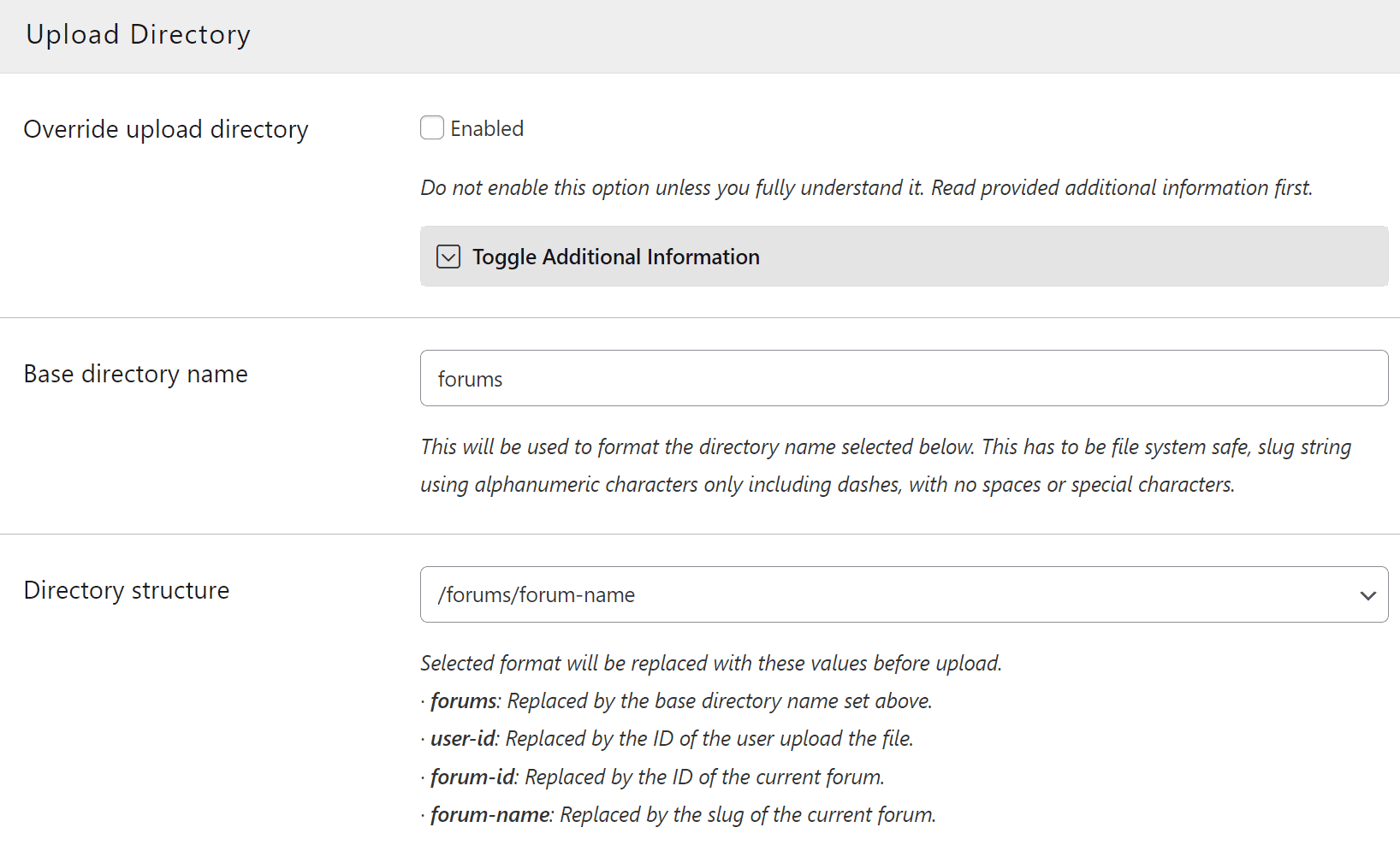
Directory structure allows you to include various elements in the path for the files, and even make so that each forum has own directory for all files, or have user based directory, or combination of these elements.
- Enabling or disabling this feature doesn’t affect any of the attachments that are uploaded previously.
- There is no reliable way to move already uploaded files to newly activated upload directory structure.
- Uploads are still located in the base website uploads directory, that can’t be changed, changes are only for directory under the uploads’ directory.
- This only affects the location of the files in the file system, it has no impact on the files visibility or accessibility.
Topic Thread Attachments Overview
If your topics can have a lot of files attached, it can be useful to have all these files listed (on top or bottom of topic thread). This feature has several settings to control display of files, similar to files list settings. And, this block shows files paged, so you can set the number of files per page too. This block can be limited to users with some user roles only.
Deletion of Attachments
Deletion of attachments is controlled via several options. Major thing to set is the deletion method:
- Through edit pages: delete options will be available only when editing topic or reply.
- Via inline links: delete links will be added inline with displayed attachments.
- Hide deletion options: there will be no deletion options available on frontend.
You also have options to handle attachments in case of topic or reply getting deleted, and you can have attachments removed if their topic or reply has been deleted.
And, you have options to handle the attachemts deletion rights for post author, keymasters and moderators.
Advance Attachments Tweaks
There are four tweaks included here.
- Hide files from Media Library: Since all attachments are added to WordPress Media Library, they will show up in the media selection popups. If you want to avoid that, and hide attachments from showing in Media Library, you can enable this option – attachments will still use Media Library, but you will not see them when browsing media library.
- Display form notices: Including information about allowed file sizes, types and other important messages related to upload.
- Display allowed types: If active, plugin will show list of allowed types in the upload form as notice.
- Forum not defined: If the forum ID for the topic form can’t be detected (the form is not part of the forum), the attachment form is not available by default. You can change that here, but be careful – if you use forum based attachments control, users may be able to upload files in the forum that you have disabled for attachments use.