
Settings Panel
Open Settings → BreadcrumbsPress → Settings. The Settings Index links to each group; All Settings shows the settings together with live search. Choose a group, change the options you need, and save your changes. Some controls depend on the selected option, registered content types, active integrations, or your plugin edition.
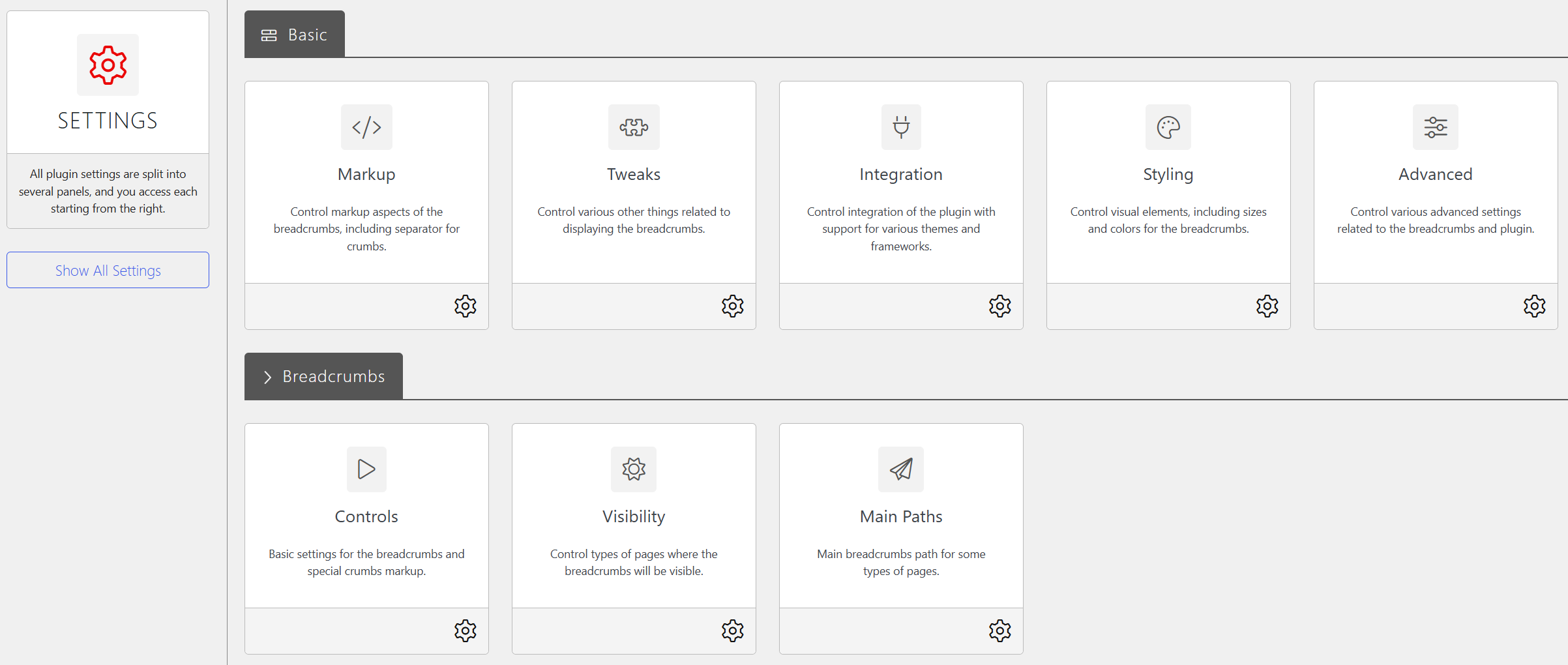
Markup
Breadcrumbs Separator
Type chooses what appears between crumbs: an Icon, ASCII Icon, a custom Character, None, or an Empty Tag. Select the corresponding icon or enter the character when that field appears. Use an empty tag when you want a separator element without text, for example to style it yourself.
JSON-LD Rich Snippets
Include snippets adds breadcrumb structured data. Search engines may use it to understand the site’s structure; enabling it does not guarantee a particular search result appearance.
HTML Wrapper Format
List Type selects an ordered (OL) or unordered (UL) HTML list for the trail. Choose the markup that fits your theme and styling.
Titles Normalization
Normalize titles leaves titles as they are, capitalizes the first letter, capitalizes the first letter of every word, or converts everything to lowercase or uppercase. Check the result with names and acronyms used on your site.
Tweaks
These length controls require BreadcrumbsPress Pro. View pricing and plans.
- Too many crumbs — Status enables collapsing intermediate crumbs when the trail exceeds the Limit. Visitors can reveal the hidden crumbs. The limit has a minimum of four.
- Long crumbs items text — Status enables shortening long individual crumb text to the specified character Limit. The full text is retained in the title attribute. The first and last crumbs and display values containing HTML are excluded.
These display tweaks do not change the breadcrumb sequence in the JSON-LD rich snippet.
Integration
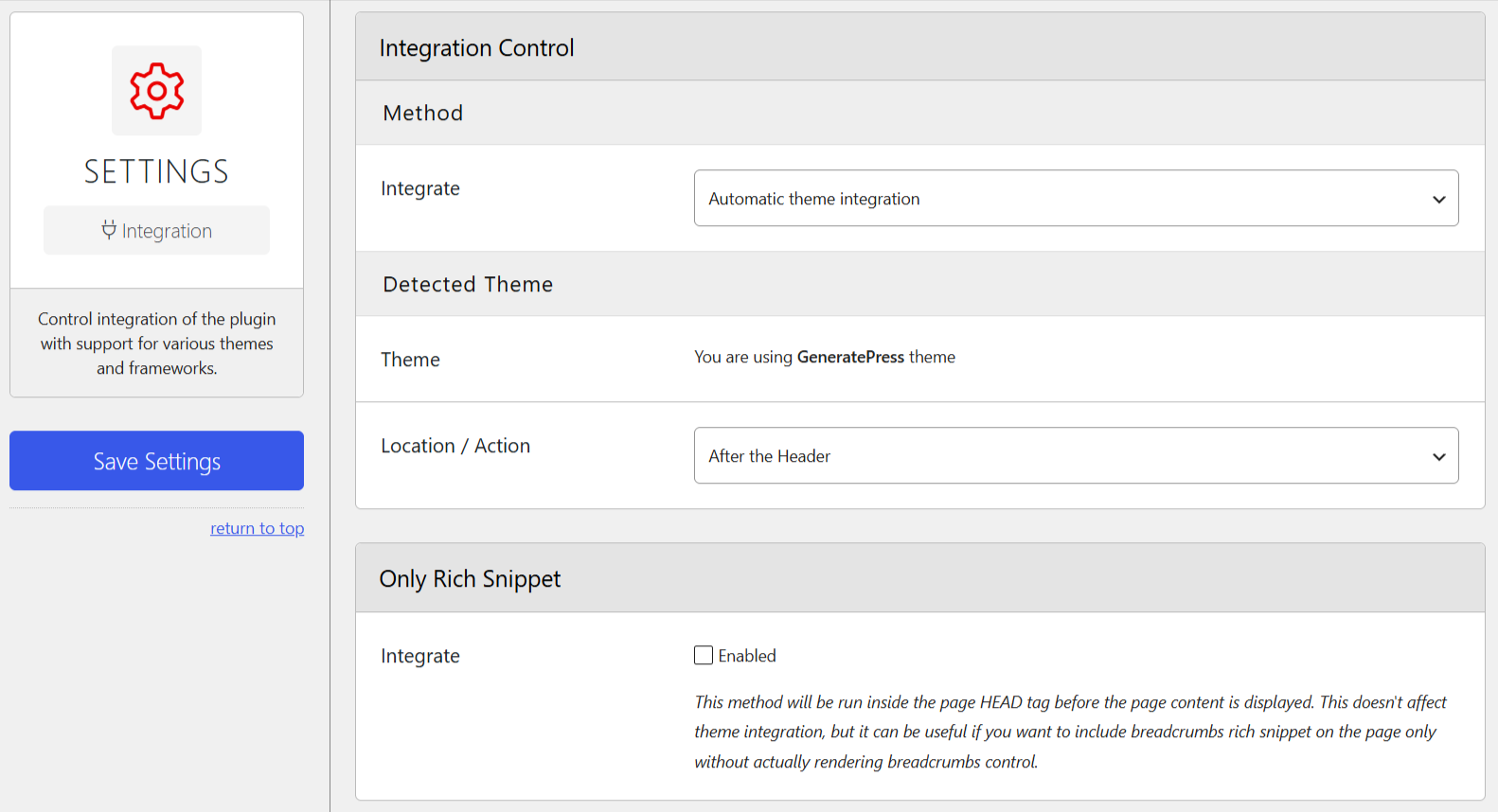
Integrate selects how breadcrumbs are placed:
- Manual integration only leaves placement to your own integration, such as the template code or shortcode shown on the Overview dashboard.
- Hook to specified action attaches breadcrumbs to a WordPress action. Enter its Action Name, the Action Priority controlling execution order, and an optional Extra Wrapper CSS class. The theme or another component must actually run that action at the desired location.
- Automatic theme integration detects a supported active theme. When available, select its Location / Action. If the theme is not recognized, the panel displays the supported themes and suggests choosing one manually if appropriate.
- Integration with supported themes lets you select the Theme or framework in use and its Location / Action. Available locations depend on the selection. Test the result: modified themes may behave differently and may need additional styling.
Under Only Rich Snippet, the separate Integrate switch outputs the breadcrumb rich snippet in the page head without requiring a visible breadcrumb control. This is independent of the theme integration method; check the output when combining methods to avoid unwanted duplicate structured data.
Styling
The styling controls adjust the breadcrumb block. Preview changes on the front end with your theme:
- Base Font Size and Base Line Height set the text size and line height.
- Padding adds space inside the breadcrumb wrapper.
- Margins around Separator controls space around separators.
- Block Alignment selects initial or inherited alignment, start, center, end, space evenly, space between, or space around.
- Link Decoration selects initial, inherited, none, underline, or overline.
Advanced
Under Disable Third Party Breadcrumbs, the WooCommerce and bbPress switches disable those plugins’ own breadcrumb output when the corresponding integration is active. This can help avoid duplicate trails.
Under Breadcrumbs titles and display override, enable Override Titles to add the Titles subpanel, or Override Display to add Display. Save the change before opening the new subpanel.
Controls
Home Breadcrumb
- Include Home controls whether the home crumb is included in the trail. This is separate from showing an entire trail on the home page in Visibility.
- Home URL overrides its destination; leave it empty to use the website’s default URL.
- Under Title, choose the website title or Custom Title. An empty custom title uses
Home. - Under First crumb display, choose Title, Icon, or HTML. The corresponding Icon or Custom HTML field appears when selected.
Post Types Hierarchy and Taxonomies Hierarchy
For each available hierarchical post type or taxonomy, choose Full hierarchy, Direct parent only, or No hierarchy. This controls how much of the parent chain is included; for example, a deeply nested page can show all ancestors or only its immediate parent. Groups with no applicable types are omitted.
bbPress and WooCommerce
When bbPress is active, Title sets the forum root title (empty uses Forums). Root selects title, icon, or HTML; use the conditional Icon or Custom HTML field for the chosen display. With GD Members Directory, With Directory Crumb controls the directory crumb for user profiles.
When WooCommerce is active, Show Store breadcrumb controls inclusion of the store root. Title sets its title (empty uses Store), and Root, Icon, and Custom HTML choose its display in the same way.
Visibility
Each switch controls whether the breadcrumb trail is shown for the named page type. The available groups reflect the site’s registered content and active plugins:
- WordPress Home: Home or Front Page, and Posts Page.
- WordPress Core: 404, Search, Archives, Date Archives, and Author Archives.
- Post Types Singular, Post Types Archive, and Taxonomies Archive: individual registered types or taxonomies; archive controls appear where applicable.
- bbPress: Profiles, Search, Topic Views, and Topic Tags. GD Topic Prefix can add Topic Prefix; GD Members Directory can add Directory.
- BuddyPress: Members, Profiles, Activity, Groups, Group, and Create Group.
- WooCommerce: Accounts.
- GD Knowledge Base Pro: Search.
If a trail is missing, check visibility for that page type as well as the chosen integration method. A visibility setting does not itself insert a trail into the theme.
Main Paths
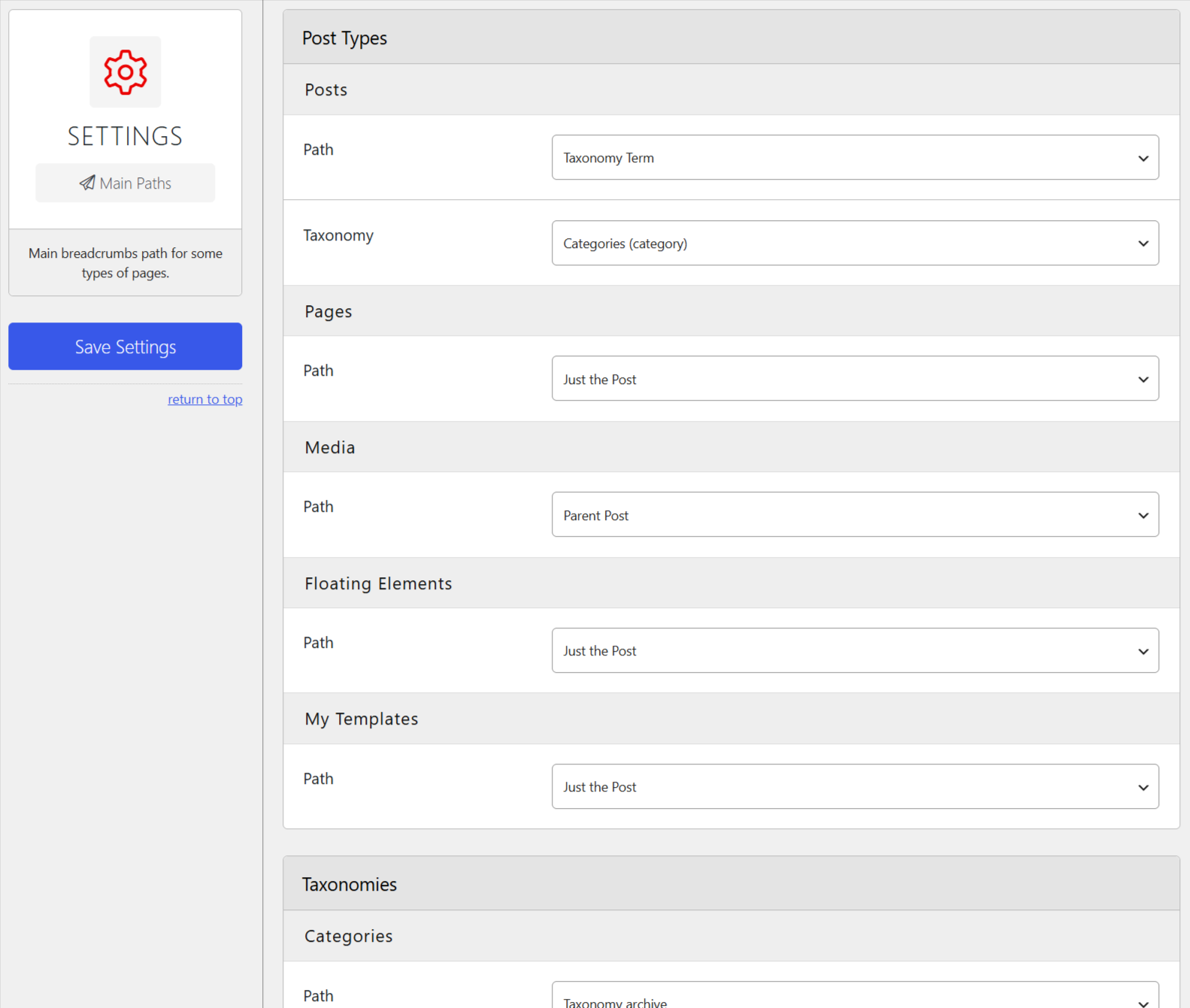
Post Types
For each registered post type, Path chooses the route to a single item. Choices depend on the type and site: for posts they can include Just the Post, Author, Taxonomy Term, Full Date, Month and Year, Year, and Posts Page. Other types can offer their archive, taxonomy, parent post, or supported archive combinations. Where available, Taxonomy selects the taxonomy used by a taxonomy-based path. The Posts page switch adds the configured posts page for eligible types.
For example, choose a taxonomy path and select a category taxonomy to put a category route before a post. The actual result depends on the item’s terms and hierarchy settings.
Taxonomies
For each taxonomy, Path selects the available term or taxonomy-archive route. Where offered, Posts page adds the configured posts page, and Post Type Archive selects a related post type archive to include before the term path. The choices depend on the taxonomy and associated post types.
Additional
The Posts page switches for Date Archives and Author Archives add the posts page to those paths. A posts page must be configured in WordPress for it to be useful.
Titles
This subpanel appears after Override Titles is enabled in Advanced. Set a title for a listed breadcrumb type; an empty field uses its automatically generated default. The Home/Front Page default depends on the Home settings in Controls.
Fields cover Home/Front Page, Posts Page, 404, Search, Archives, Date Archives, Author Archives, registered post types and their archives, and taxonomies. Depending on active integrations, additional fields can include bbPress Search, Search Results, Topic Views and Topic Tags; GD Members Directory’s Directory Page and Directory Crumb for Profiles; and GD Knowledge Base Pro Search.
Display
This subpanel appears after Override Display is enabled in Advanced. Each field changes the displayed form for its breadcrumb type and accepts HTML. Leave it empty to use the title; %title% represents the title in the displayed value. For example, <strong>%title%</strong> displays the title in bold.
The available fields cover Home Page, Front Page, Posts Page, 404, Search, Archives, Date Archives, Author Archives, registered post types and archives, and taxonomies. Active integrations can add the bbPress, GD Members Directory, and GD Knowledge Base Pro fields listed under Titles.
Use Tools to export settings before a larger change or to transfer them to another site. The Overview dashboard summarizes the current integration.