
Displaying Social Profiles
Profiles are links to your own social accounts or other configured destinations. They do not share the current post and do not open AI exploration. Lite and Pro support profile display.
Create profile records
Open coreSocial → Settings → Profiles and use Add New Profile. Choose a network/type, give the record a recognizable name, and enter its destination. More than one record can use the same network, so distinct names make later selection easier.
Enter follower counts manually if you want them shown and choose the appropriate count-label type, such as followers, fans, subscribers, or another supported label. Save before opening the editor to select these records.
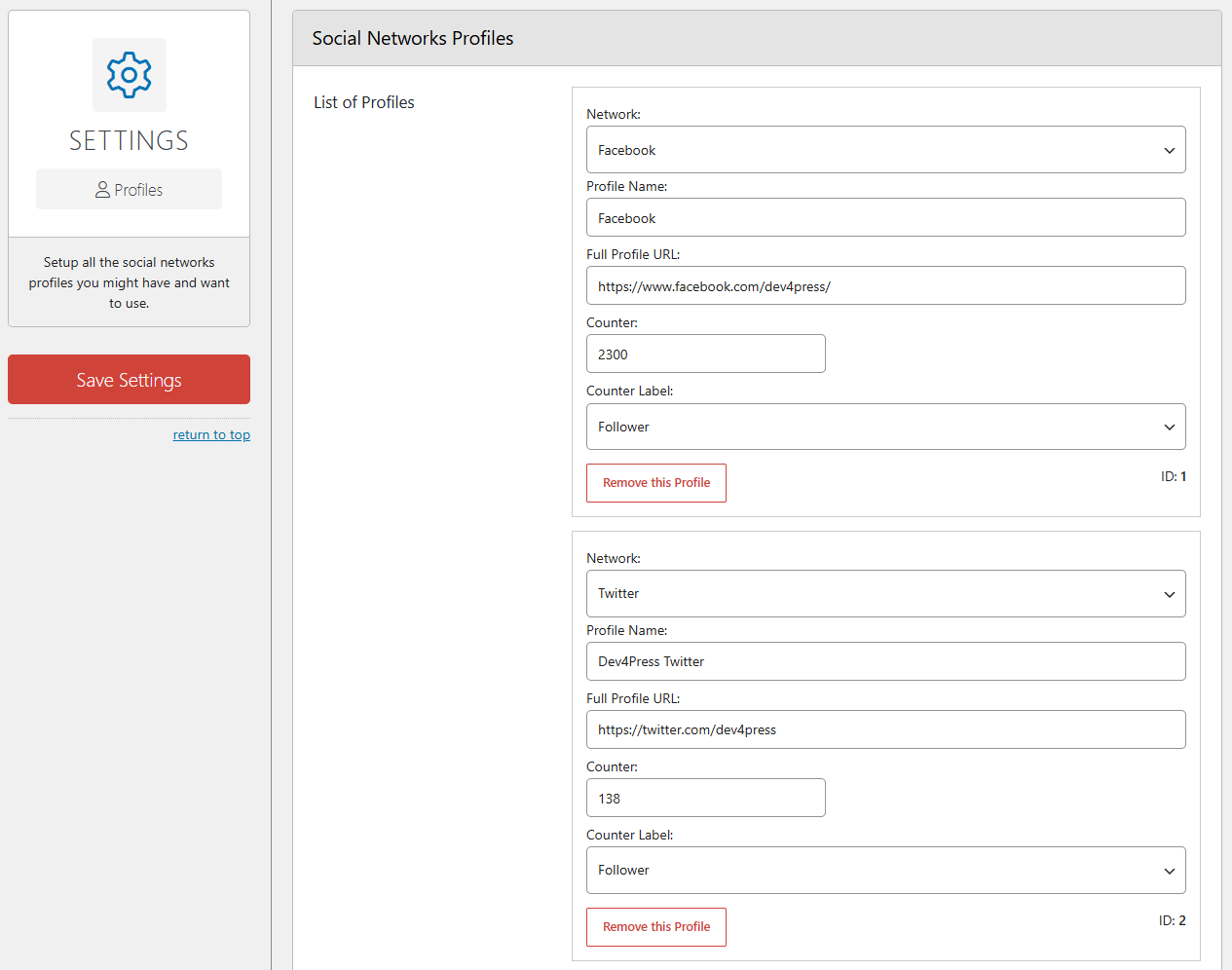
For network-specific destination formats such as Phone, Email, or Skype, follow the field guidance and test the actual frontend link. Adding a record alone does not put a list on the site.
Choose a placement
- Use the Profiles block for WordPress content or block templates.
- Use coreSocial Profiles in Elementor with supported Atomic functionality.
- Use the Profiles List shortcode in a shortcode-enabled area.
Choose all saved profiles or an individual selection. Block/widget selections can be reordered. In a shortcode, select saved profile IDs, not network names, and use show="profiles" with the ID list.
Choose the appearance
Decide whether the list needs icons, labels, or both. Choose Plain/Shaded style, Name/Followers/Name & Followers labels, alignment, item alignment, colors, hover colors, sizes, and link behavior through the placement’s controls.
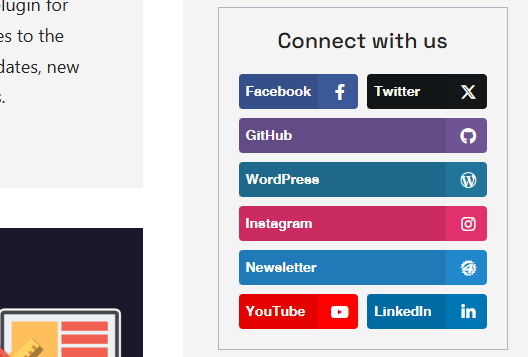
Justified alignment can use a column count. Check the result with long names and at a narrow viewport. Follower text comes from the saved manual value, not a live network lookup; a zero value does not produce a meaningful follower total.
Blocks and widgets store their own display choices, while the profile record remains the source for the destination, name, and follower information. Updating a record is different from changing a particular block’s layout.
Empty selections differ
An explicit empty selection in a Profiles block/widget shows no profile items. The shortcode’s empty profile list falls back to all profiles. This distinction matters when replacing a shortcode with a block or generating attributes in code; see the shortcode reference.
Test and maintain
Check every public destination, title/label, target behavior, and responsive layout. Update manually entered counts when needed. Use unique record names so the wrong account is not selected when several profiles belong to the same network.
If the list is missing, check saved records and selection first, then review Profiles troubleshooting. For social sharing instead, use Sharing Content.