
Sharing Content with coreSocial
This guide takes you from enabling sharing methods to a tested button group. Share sends the current content to a social/internal destination; Profiles links to your own accounts, and Explore opens AI assistants.
Prepare the methods
Install the intended edition using Install and Update. Activate Pro through Freemius if using premium buttons or display methods.
Open Settings → Networks and Internal, enable the buttons you want, and save. Complete required details such as Messenger’s app ID/redirect URL. Then select those methods in the placement that will display them. The network article explains this two-step selection and provider limitations.
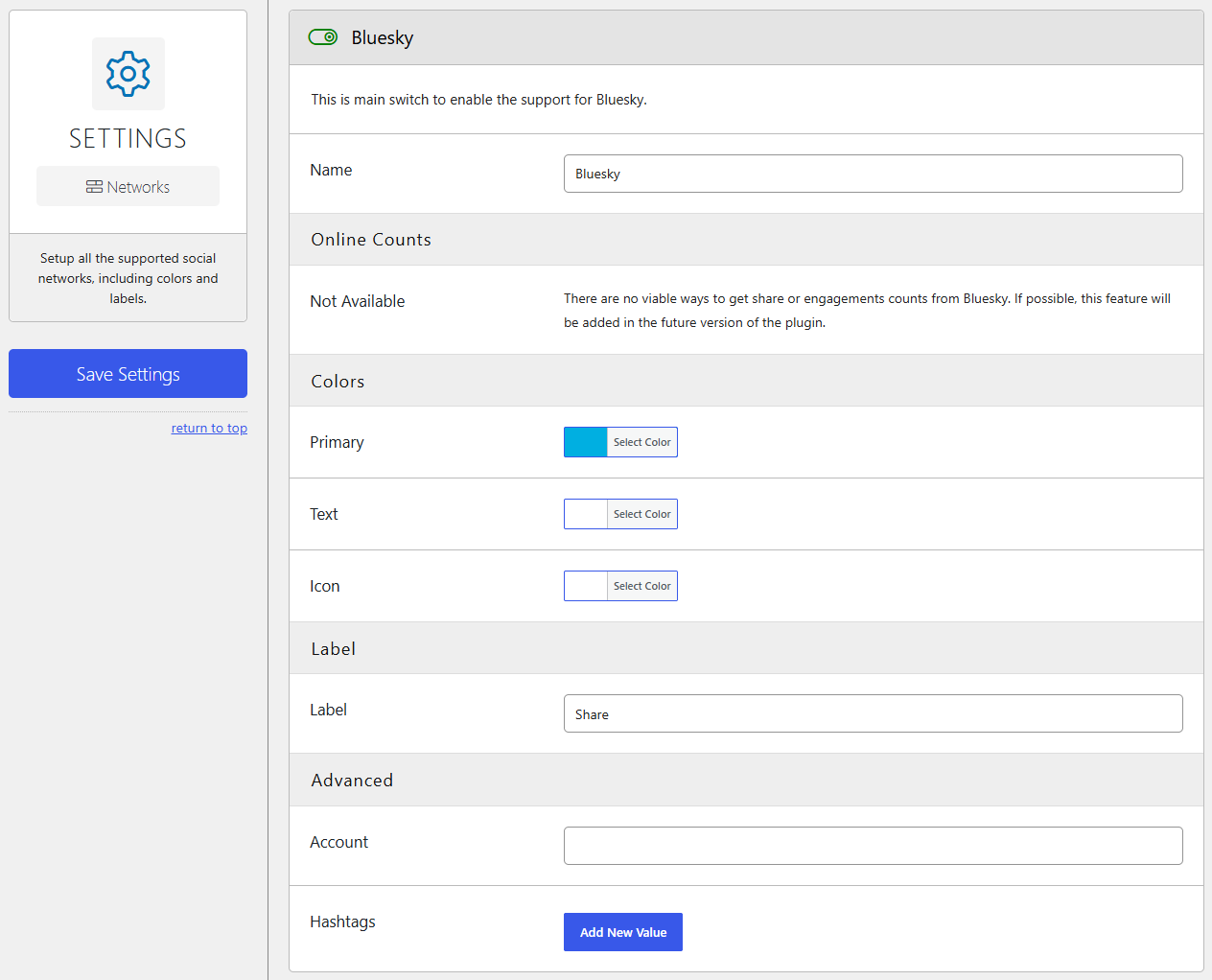
Start with a small selection appropriate for your readers. More enabled methods do not need to appear in every group.
Choose a placement method {id=”choose-a-placement-method”}
Automatic insertion {id=”automatic-insertion”}
Open Settings → Inline Auto Embed. Enable Active, select the post types, choose before content, after content, or both, and select the networks. Save and test a public singular post of a selected type.
This depends on the normal WordPress content filtering for the main query. A custom builder/template may not use that path. Per-post inline overrides can also change placement. When a template needs manual placement, use the appropriate block or widget instead of repeatedly changing automatic settings.
Do not add stops automatic insertion while retaining the inline method. That is useful for a shortcode/template integration that needs the registered method but should not create another automatic group. See Inline Sharing Shortcode.
Block editor
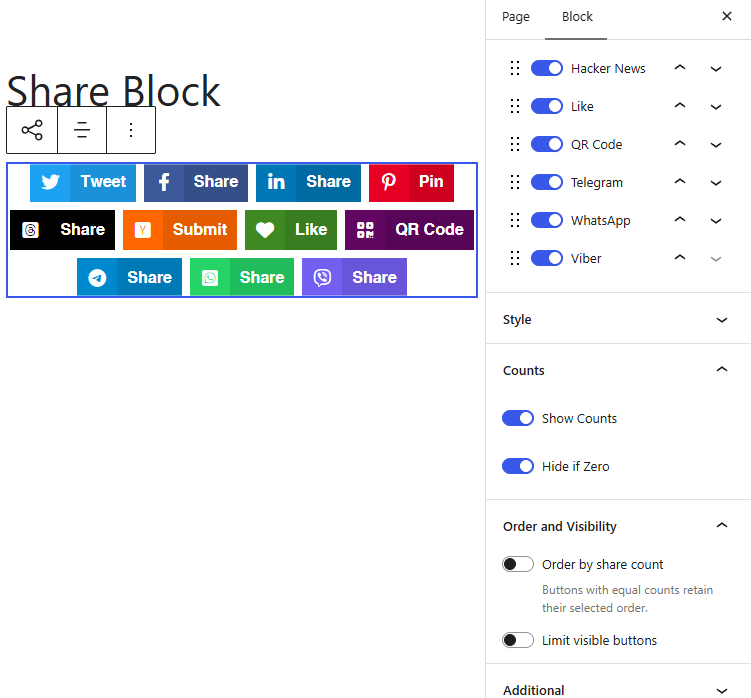
Use the Share block in content or a block template. Select its networks, appearance, counts, and page context. In a Query Loop, Block Context can target the post supplied by the containing block rather than the enclosing archive.
Elementor
Use coreSocial Share with supported Elementor 4 Atomic functionality. Configure networks and display controls, select the appropriate page context, and test the updated public page. Editor interactions are inactive.
Shortcode or PHP template
Use the inline shortcode for a shortcode-enabled area and the display function for PHP templates. This manual renderer has a smaller override surface than a Share block/widget and uses enabled networks; do not copy Explore-only attributes into it.
Style the group
For automatic insertion, configure Inline Styling. For a block or Elementor widget, use its individual controls. Choose icon-only or labeled buttons, suitable alignment, readable colors, sizes, spacing, and shape.
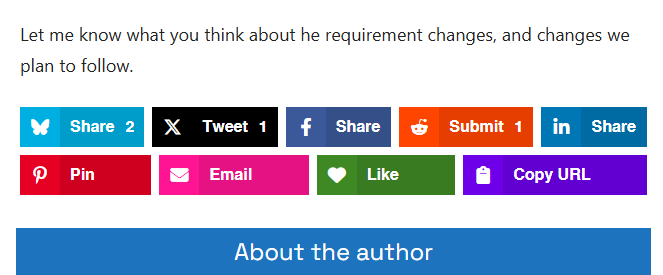
Share blocks and widgets store individual display choices. Changing global inline defaults is not a bulk replacement for those saved choices. Use the placement-specific article when you need to change an existing instance.
Sorting buttons by count and the initially visible button limit require coreSocial Pro.
Use More to keep the initial group short without removing the additional selected methods. Equal counts retain the selected order when sorting is enabled.
Decide what counts mean
Choose the global count method in Basics and the visibility controls in the placement. Read Counts and Logging to distinguish internal clicks, online values, and individual records. Hidden counts do not mean tracking is disabled.
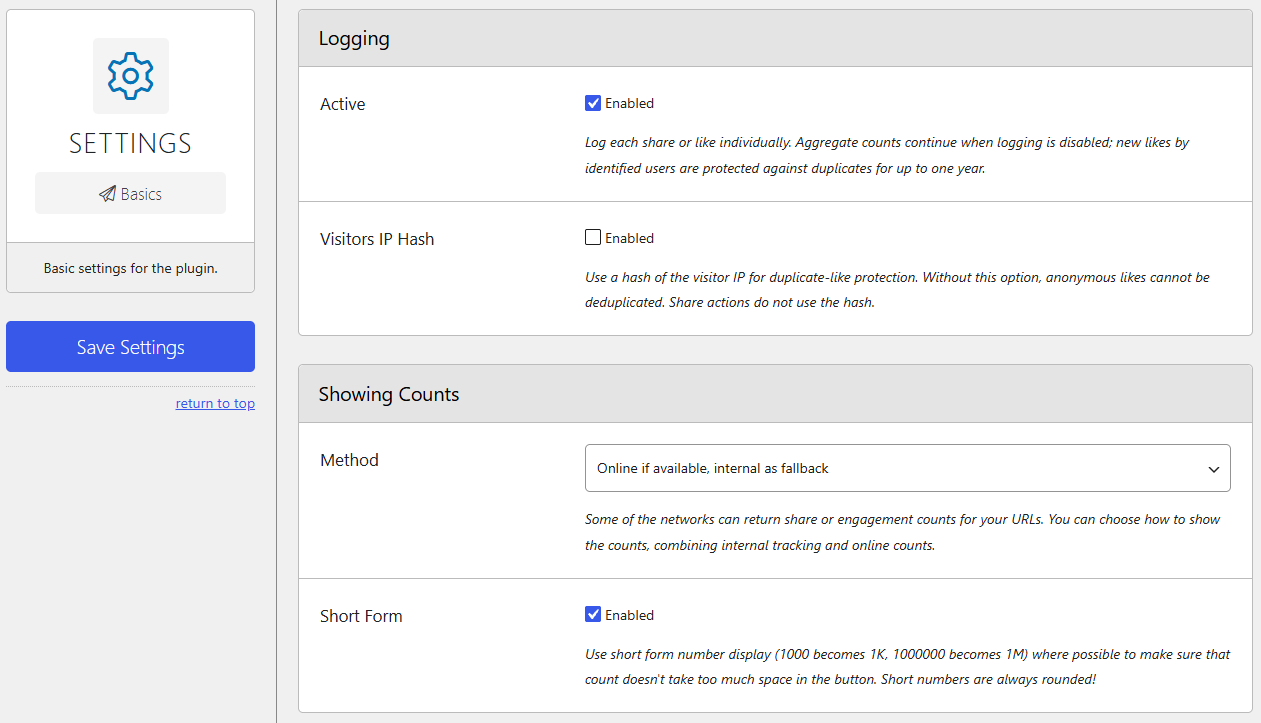
For online counts, enable global checks and the supported per-network option, provide any API requirement, and allow time for background processing. A frontend click is not proof of a completed share or an immediate online-count update.
Optional automatic additions
Floating Bar and bbPress integration require coreSocial Pro.
Use Floating Bar for persistent side/bottom access, including a narrow desktop tab. Configure its network selection independently. For bbPress, select forum/topic locations rather than relying on normal content insertion.
Test before finishing
Check a representative post, page, and template at desktop and narrow widths. Confirm the title/URL, intended network selection, labels, counts, and placement. Test clipboard/Print/QR/app behavior only where you enabled those buttons.
Check that automatic output and manual placements have not created unintended duplicates. Inspect Shared Items and Share Logs with the correct counting assumptions. Use the missing-button, duplicate-button, or count FAQ if the result is unexpected.