
License Activation
coreSocial uses Freemius for Pro license activation and account management. Lite does not require a Pro license. Install and activate the Pro plugin first; see Install and Update.
Find your license key
Use the license key supplied with your purchase or available through the account associated with that purchase. Keep the key private and use a license with an available site activation.
Activate after installation
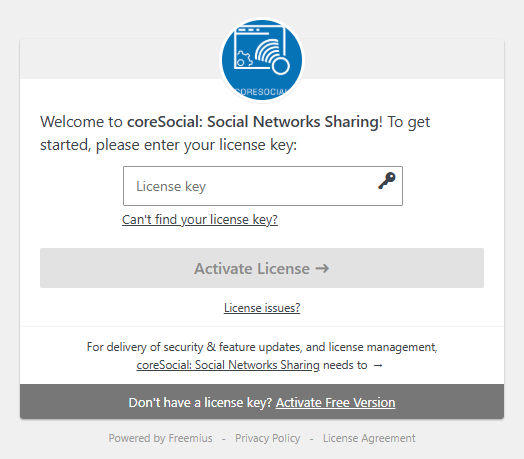
- After activating coreSocial Pro in WordPress, follow the Freemius activation prompt if it appears.
- Enter your license key and select Activate License.
- Complete any additional account prompts and wait for confirmation.
- If coreSocial displays an installation completion screen, finish it and continue to coreSocial → Overview.
The available prompts depend on whether the installation is already connected to an account and whether it has a license. If no activation prompt appears, use Account instead.
Activate or change a license later
Open coreSocial → Account. Use Activate License, or Change License when a license is already associated with the installation, and complete the prompts. Review the site, account, and license information shown after activation.
License management is handled through Freemius’s activation/account screens. It is not a setting in coreSocial’s ordinary Settings subpanels. See Account and Upgrade for the other available actions.
Move an activation to another site
On the old site, open Account and use Deactivate License when available. Read and confirm the action, then activate the license on the new site. Deactivating a license is separate from deactivating the WordPress plugin, and from canceling a subscription. Review which Pro features the old site uses before releasing its activation.
If activation fails
Check the exact on-screen message. Confirm that the complete key belongs to coreSocial Pro, that the license is valid, and that a site activation is available. Check the site’s ability to communicate with the licensing service, then retry.
If the problem continues, contact support with the message and site details. Do not post your key publicly. For installation or account/download problems, also check Install and Update and Account and Upgrade.