
Plugins That Add Editor Options
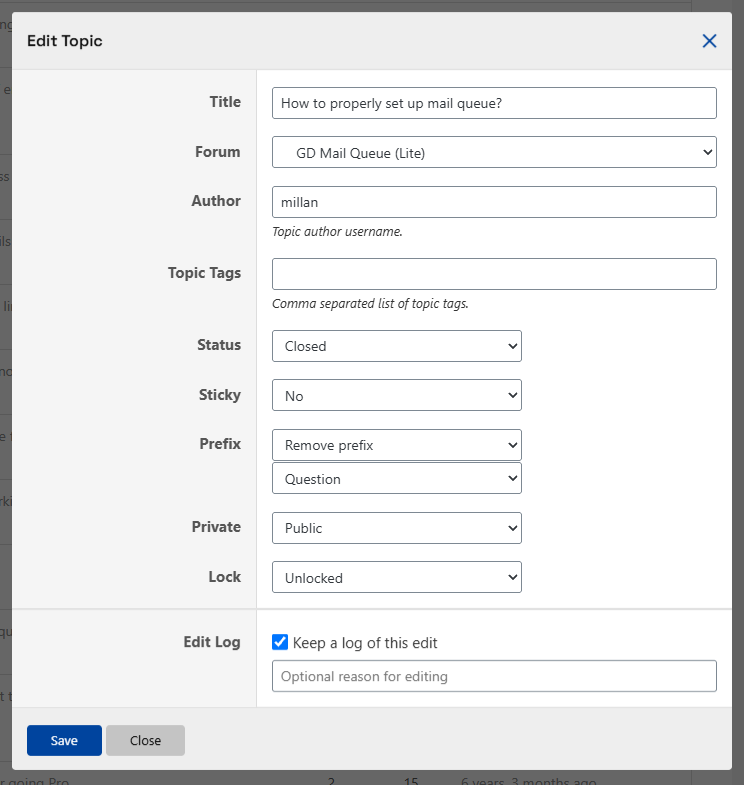
Other plugins can add fields to the forumManager topic editor. The options described here are supplied by those plugins, so they appear only when their integration and required features are available. They work alongside the built-in options described in Editing Topics.
Install and activate bbPress, forumManager, and the relevant companion plugin. In Settings → forumManager, enable Edit Topics, then sign in with an allowed moderator account. The Getting Started panel lists registered actions for single and bulk editing; the fields shown in a particular dialog can also depend on its context.
topicPrefix Pro for bbPress
topicPrefix Pro for bbPress (formerly GD Topic Prefix Pro) adds a Prefix field to the single and bulk topic editors when its premium code is available.
This integration requires topicPrefix Pro. See the topicPrefix product page for its licensing options.
Configure prefixes and prefix groups in topicPrefix, and associate the groups with the relevant forum. When the topic has available groups, the single-topic dialog shows a selector for each group. Select a prefix or Remove prefix and save.
The bulk Prefix control appears in a single-forum topic list when the forum has applicable groups. For each group, select a prefix, Remove prefix, or Don’t change, then save. It is not displayed in every topic-list context, such as a topic view. Review the selected topics and choices before applying a bulk change.
forumToolbox Pro for bbPress
forumToolbox for bbPress (formerly GD bbPress Toolbox) adds topic actions when the corresponding forumToolbox features are enabled and its premium code is available.
These integrations require forumToolbox Pro. See forumToolbox pricing and plans.
- Private Topics adds Private to single and bulk topic editing. Choose Private or Public to change the topic’s privacy setting. Who can read a private topic depends on forumToolbox’s privacy settings.
- Lock Topics adds Lock to single and bulk topic editing. Choose Locked or Unlocked to control the feature’s temporary reply lock. A locked topic is not necessarily closed; this is separate from bbPress topic status.
In bulk editing, each field also offers Don’t Change, so you can leave that property as it is. Enable Private Topics and/or Lock Topics in forumToolbox’s feature controls to use the corresponding field. The default settings enable Lock Topics and leave Private Topics disabled, although an individual site’s configuration can differ.
If an option is missing
Check that the companion plugin is active and its premium functionality is available. For forumToolbox, check that the relevant feature is enabled. For topicPrefix, check the forum’s assigned prefix groups and open a single-forum topic list for bulk editing. Then reload the frontend page and verify that Edit Topics and your moderator access are enabled in forumManager.
For the editing steps, see Quick and Bulk Editing. Developers building a custom field can use the editor integration guide.