
Elementor Explore Widget
This feature requires coreSocial Pro.
The coreSocial Explore widget requires supported Elementor integration in addition to Pro. Follow Explore with AI to configure the enabled providers and site defaults.
Place and choose providers
Insert coreSocial Explore in a page or template. In AI Networks, select and reorder the enabled providers. An explicit empty selection displays no buttons. A provider disabled in the plugin settings cannot appear in output.
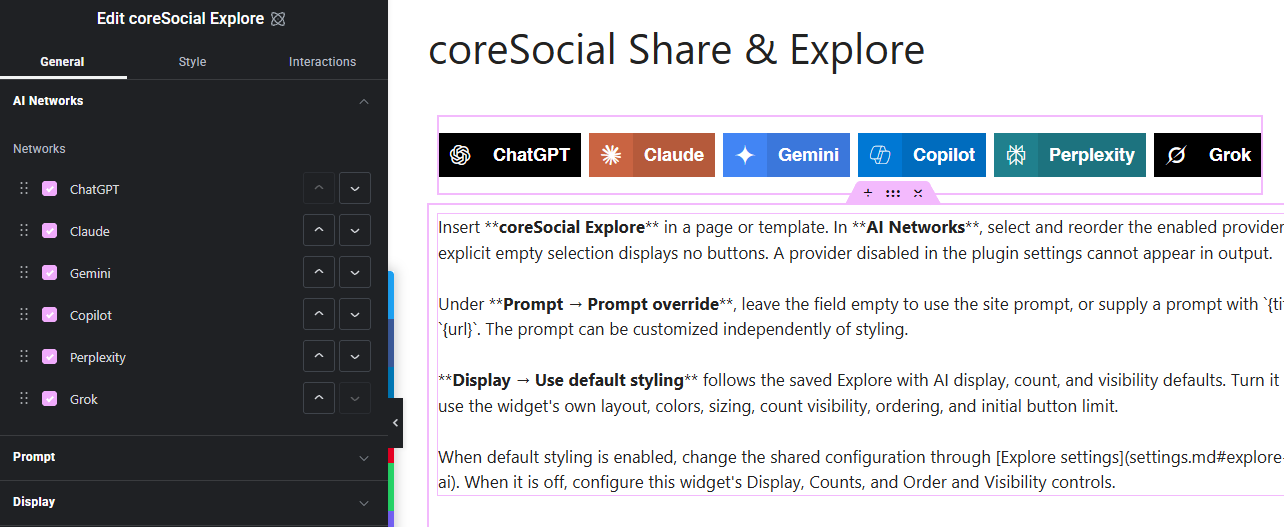
Under Prompt → Prompt override, leave the field empty to use the site prompt, or supply a prompt with {title} and {url}. The prompt can be customized independently of styling.
Default or custom display
Display → Use default styling follows the saved Explore with AI display, count, and visibility defaults. Turn it off to use the widget’s own layout, colors, sizing, count visibility, ordering, and initial button limit.
When default styling is enabled, change the shared configuration through Explore settings. When it is off, configure this widget’s Display, Counts, and Order and Visibility controls.
Context and testing
In Additional → Page Context, select Global Context or Document Context. Verify the public title and URL, especially in reusable templates. Buttons are inactive in the editor preview.
Update and inspect the front end. Gemini opens the prompt-copy dialog; other providers use their configured launch links. Provider sign-in and page access remain provider-dependent. See Use Gemini and Explore counts.