
Explore with AI
This feature requires coreSocial Pro.
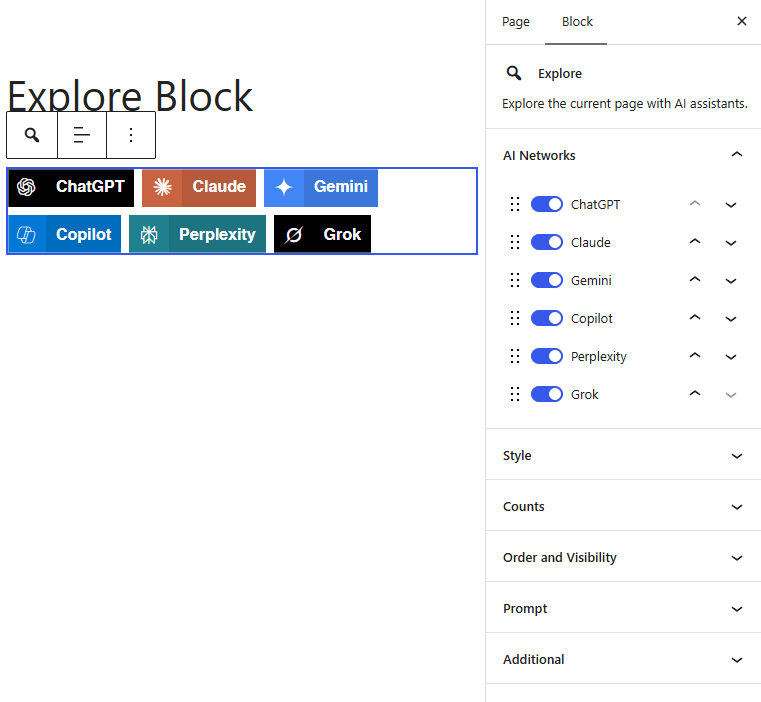
Explore offers ChatGPT, Claude, Gemini, Copilot, Perplexity, and Grok as destinations for exploring a page. It is separate from social Share buttons and social Profile links. This guide connects provider configuration, default styling, placement, and frontend testing.
Configure AI providers {id=”configure-ai-providers”}
Open coreSocial → Settings → AI Networks. Enable the providers you want and customize their names, button labels, and primary/text/icon colors. All six built-in providers are enabled by default in Pro, but you still need to add an Explore placement.
Provider names and labels can be different. Disabling a provider removes it from selections/output, including older instances that previously selected it. Individual Explore blocks, widgets, or shortcodes can display different subsets of enabled providers.
Set the prompt and defaults
Open Settings → Explore with AI. Set the default prompt and choose the layout, alignment, colors, sizes, shape, spacing, count visibility, count ordering, and initially visible button limit. Save before testing.
Use {title} for the page title and {url} for its URL. For example:
Read "{title}" at {url}. Summarize the main points and help me explore them. If you cannot access the page, say so.
The title and URL are included in the prompt; the plugin does not upload the page contents. Private pages, paywalls, provider restrictions, sign-in requirements, or inaccessible URLs can prevent the assistant from reading the page. The provider controls what happens after its destination opens.
Choose a placement
Block editor
Add an Explore block. Select/reorder providers, optionally override the prompt, and choose the page context. An explicitly empty selection displays no buttons. Use Block Context in a suitable Query Loop when each instance should target the contained post.
Elementor
Add coreSocial Explore with supported Elementor Atomic functionality. Choose providers, a prompt override if needed, and Global or Document Context. Update and test a public page; the editor buttons are inactive.
Shortcode or template
The Explore shortcode provides provider, prompt, and display overrides for shortcode-enabled areas:
For a PHP integration, use the Explore display function. Follow its reference for explicit page context and returning markup without printing it. Both paths return no output without Pro access.
Default styling and individual overrides
New Explore blocks and widgets can follow the shared display, count, and visibility defaults with Use default styling. A block saves custom settings when you change a display option; re-enable the switch to follow shared defaults again. In Elementor, turn the switch off before using custom display values.
Prompt overrides are independent of that styling choice. An empty prompt override uses the site prompt. A shortcode/template override applies only to its current render and does not rewrite the shared settings.
Count ordering and the More button affect the presentation of the selected providers. They do not enable a disabled provider or add social networks to Explore. Use readable labels and check the initial visible set at narrow widths.
Use Gemini {id=”use-gemini”}
Gemini uses a prompt-copy dialog. Click Gemini, select Copy prompt, then Open Gemini, and paste the prompt into a chat. If clipboard permission is unavailable, the dialog selects the text so it can be copied manually.
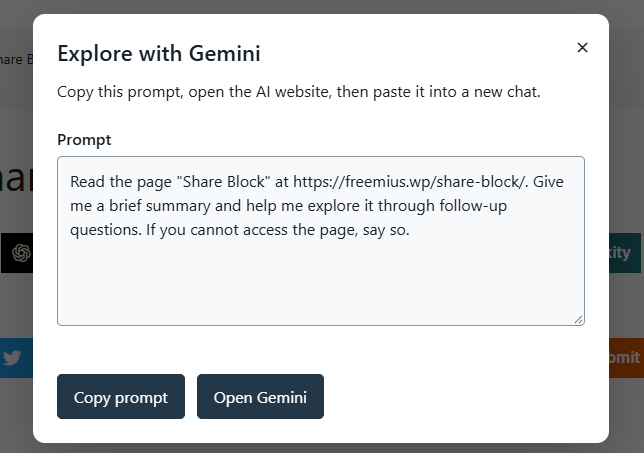
The Open Gemini link remains available. Close the dialog with its close control, the backdrop, or Escape. Test this complete workflow on the public page and confirm that its title and URL are correct.
Understand the statistics
Explore tracks internal provider-link clicks and hides the numbers by default. Opening Gemini’s dialog or copying the prompt does not record an exploration; following its provider link does. Total AI Explorations is separate from social shares on the dashboard.
The totals do not confirm completed conversations or successful page access. Individual logging follows the plugin’s logging switch. Read Counts and Logging before using the figures in reporting.
Verify and troubleshoot
Check the Pro activation, enabled providers, saved selection, shared/default settings, and actual frontend context. Try a public page and more than one provider to distinguish a site problem from a provider restriction. Test Gemini’s dialog and keyboard dismissal if it is included.
For missing buttons or a provider that cannot read the page, use Explore troubleshooting. For a missing widget, check Elementor requirements; for Pro access, check License Activation.