
Share Block
The Share block adds social and internal buttons at a position chosen in the WordPress block editor. It is available in Lite and Pro. For the complete setup sequence, start with Sharing Content.
Add and select networks
- Enable the required methods in Networks or Internal settings.
- Add Share from the coreSocial inserter category.
- Open Networks and select/reorder the buttons for this block.
- Save and preview the public page.
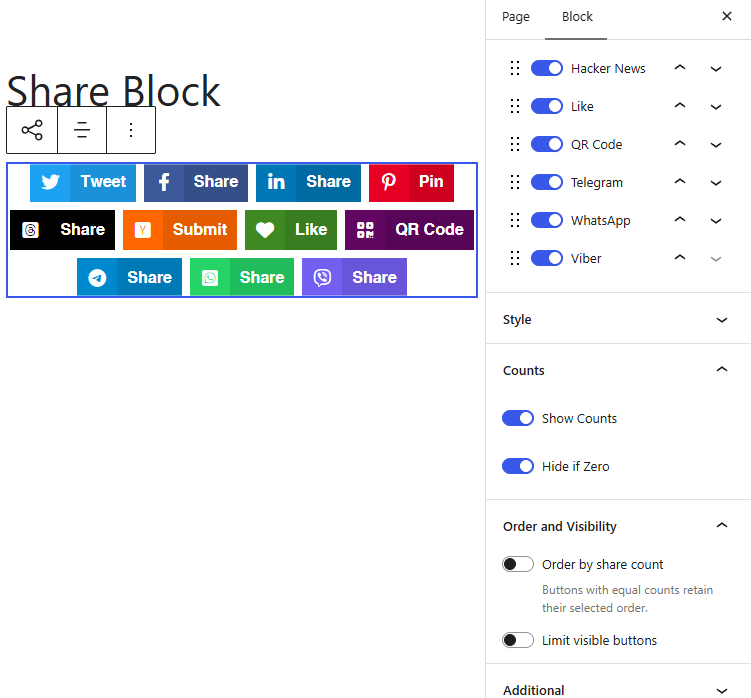
An explicit empty selection produces no buttons. Disabled networks are unavailable even if selected in an older block. Selecting networks for automatic insertion is separate from this block’s selection.
Style and counts
Use Style to choose icon-only or icon/label layout, branded or custom colors, normal/rounded/round shape, spacing, and button/font sizes. Alignment is also available through the block controls.
Use Counts to show numbers and hide zero values. The count source comes from global count settings, while this block controls whether the number is shown.
Ordering by share count and the initially visible button limit require coreSocial Pro.
Order and Visibility can sort buttons by count and show a More button for the remainder. Equal counts retain the selected order. This does not enable additional networks or change the count source.
Context and CSS
Under Additional, choose Global Context for the page or Block Context for a post supplied by the containing block. CSS Class adds your own wrapper classes. A page containing a Query Loop should be tested with different posts to verify the target URLs.
Share blocks store their own display settings; there is no Explore-style Use default styling switch. Changing Inline Styling should not be treated as a bulk update of saved Share blocks.
For equivalent placement in Elementor, see Elementor Share Widget. For duplicate groups or missing buttons, see the sharing FAQs.