
Ultimate Guide to ArchivesPress
ArchivesPress helps visitors explore your site through indexes of dates, authors, or taxonomy terms. Each item links to an archive page where visitors can browse the related content.
This guide walks through planning, creating, and checking an index. The linked articles explain the individual controls in more detail.
Install ArchivesPress
Follow Install and update ArchivesPress to install and activate the plugin. Activation makes the indexes available, but does not place one on your site. Each index is configured where you add it; there is no global settings page.
Plan your index
Start with the way you want visitors to find content. A dates index suits a chronological archive; an authors index helps visitors explore by contributor; and a terms index groups links by a taxonomy such as categories or tags. You can add more than one index to a page when visitors need different ways to browse.
Decide which public post type each index should count. Indexes use published posts without passwords. For a terms index, choose a public taxonomy registered for that post type and check that the relevant posts have terms assigned. These choices affect the index’s entries and counts.
Build an example: a category index
Suppose you want a page where visitors can browse your posts by category:
- Edit the page in the block editor and add Terms Archives Index from the ArchivesPress category.
- Select the block. Choose Posts as the post type and Categories as the taxonomy.
- Choose Name and Ascending for an alphabetical list. Try Basic if you want columns or Compact for a wrapping row.
- Decide whether counts help visitors, then adjust the colors and typography to suit the page.
- Publish or update the page. Open it on the front end and follow a category link to check the result.
The following preview shows the same block with a different taxonomy and sort order: Products, ordered by post count in descending order.
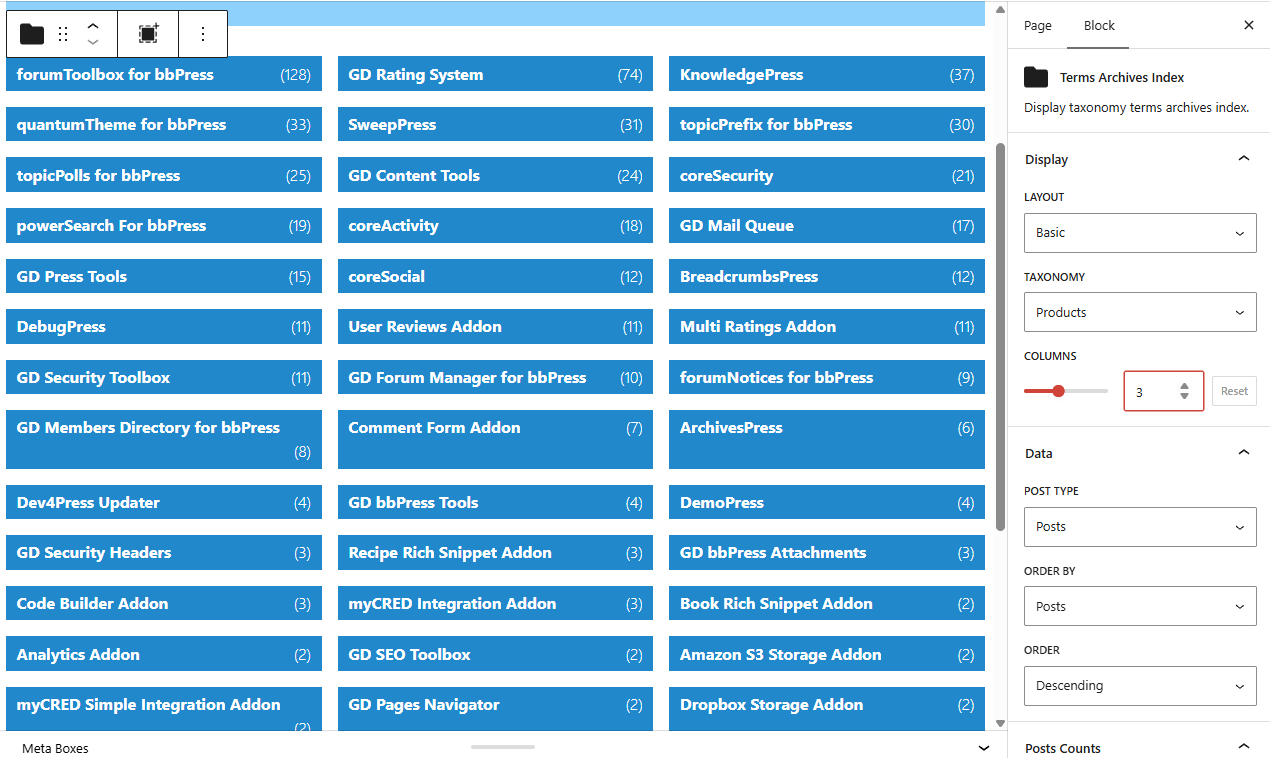
The terms index article explains the available choices. For help finding the sidebar controls, see Using blocks.
Choose a placement method
The example uses a block, but the same index types are available as Elementor widgets when a supported Elementor version is active. ArchivesPress also provides shortcodes for shortcode-enabled content; their attributes are documented in the shortcode reference.
For example, this dates widget is configured in Elementor alongside its preview:
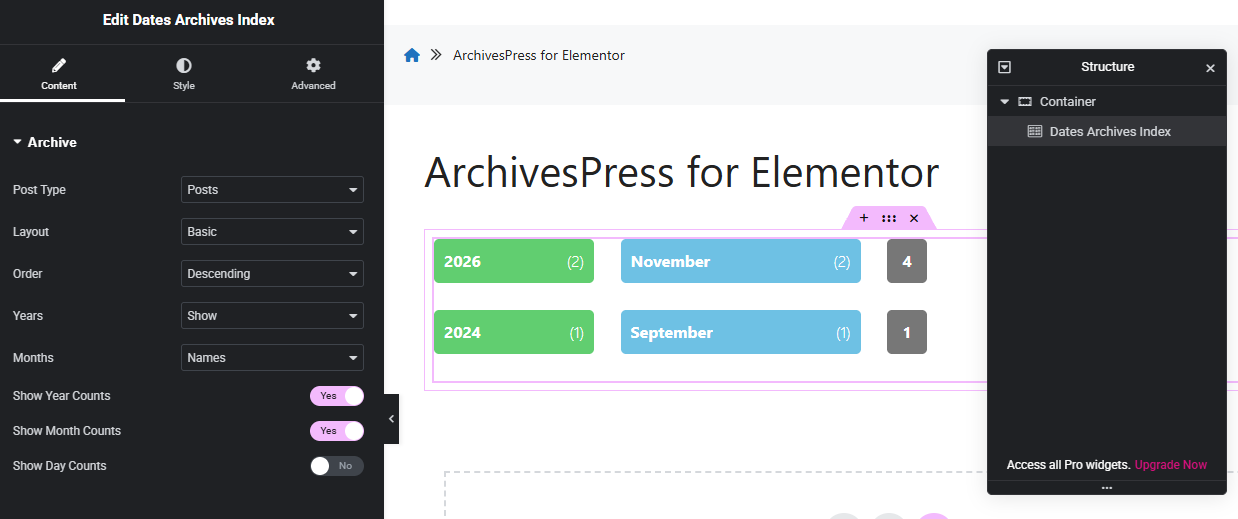
Choose the method that fits the page you are editing. An index’s settings belong to that instance, so a second index can use a different post type, layout, or appearance.
Check the visitor experience
Preview the published page at a wide and a narrow screen width. Check that the entries are readable, the order makes sense, and counts are useful. Follow several links, including one for a less frequently used entry, to confirm that visitors reach the content they expect.
Pay particular attention to custom post types. The index counts the post type you selected, but date and author links use standard WordPress archive URLs by default. A destination may therefore need site-specific link handling to show the intended content; the index count alone does not establish what the destination displays.
Continue and maintain
Use the dates, authors, and terms articles when configuring another index. If entries are missing or a destination looks wrong, follow the relevant checks in Troubleshooting.
After updating the plugin, revisit representative indexes and their destination pages. The installation and update guide covers the update process.
