
Ultimate Guide to forumManager for bbPress
forumManager for bbPress lets authorized users change forum and topic properties from frontend lists, using a dialog for one item or a selection of items. This guide takes you from installation to your first edit and explains the available controls and checks.
Install and configure
- Check the system requirements: WordPress 6.7 or newer, PHP 8.1 or newer, and bbPress 2.6.2 or newer.
- Install and activate bbPress and forumManager. See Install and update for directory, ZIP, and manual installation steps.
- Open Settings → forumManager in WordPress administration. The Getting Started panel lists registered actions and includes the settings.
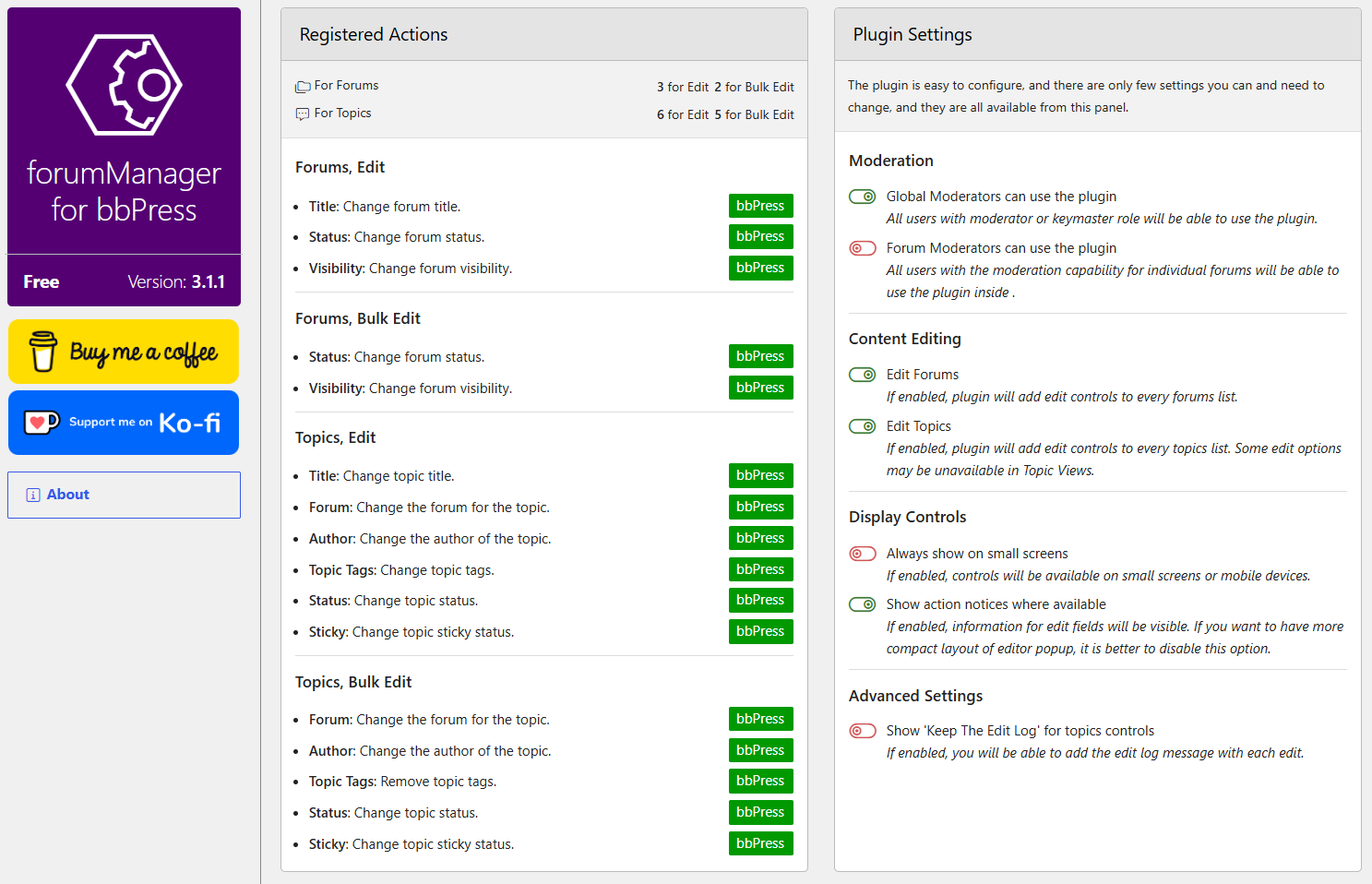
Under Moderation, keymasters can use the plugin; enable Global Moderators can use the plugin for bbPress moderators. The separate Forum Moderators can use the plugin option enables applicable topic controls for users with individual moderation capability. Forum-list editing requires a keymaster or an enabled global moderator.
Under Content Editing, enable Edit Forums, Edit Topics, or both. Each toggle saves when selected. The Getting Started panel guide explains all settings and defaults.
Edit a single topic
- Sign in as an allowed moderator and open a frontend topic list. Select edit beside a topic. On a single topic page, use Quick Edit among the topic links.
- Review the dialog and change the fields you need. For example, change Status to close a topic, or choose another Forum to move it.
- Select Save. Once the page reloads, check the topic’s status or destination.
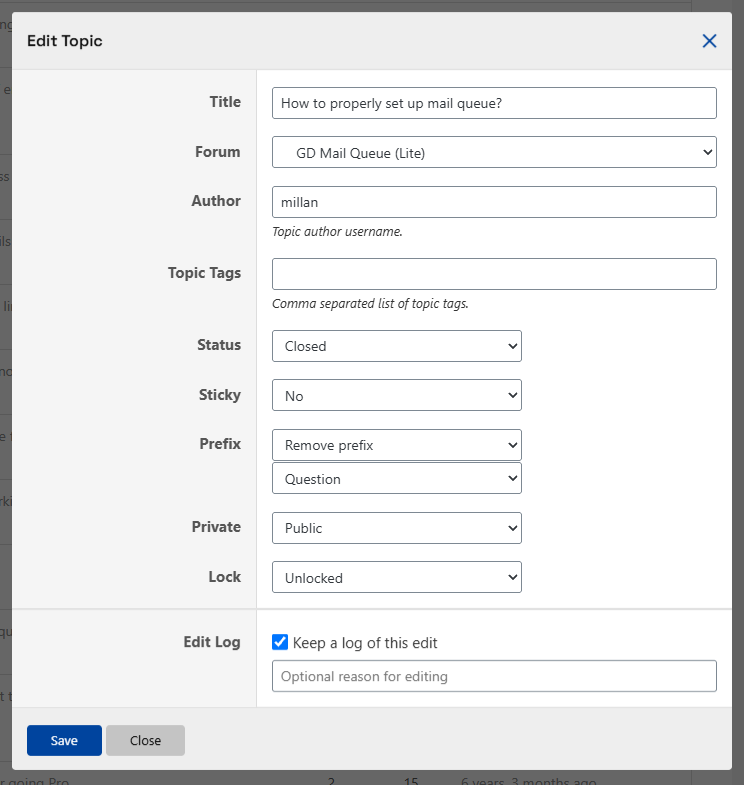
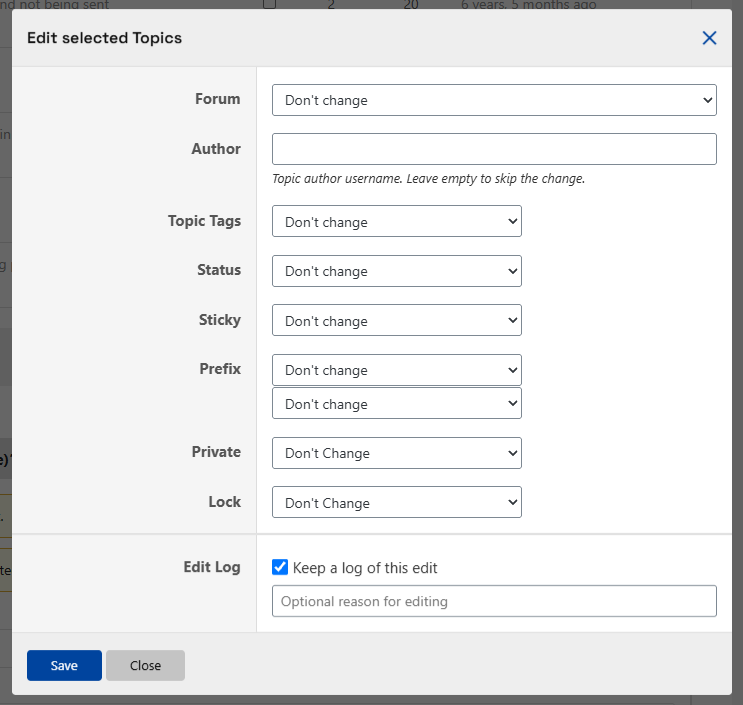
The default topic editor can change title, forum, author, tags, status, and sticky status. Use a username for Author and a comma-separated list for Topic Tags. Tags require the bbPress topic tags feature. The image also shows Prefix, Private, and Lock fields supplied by companion plugins; your dialog may differ. See Editing Topics and Plugins That Add Editor Options.
Edit a forum
With Edit Forums enabled, use edit beside a forum in a frontend forum list. Change the title, status, or visibility and select Save. Check the result, especially when changing visibility.
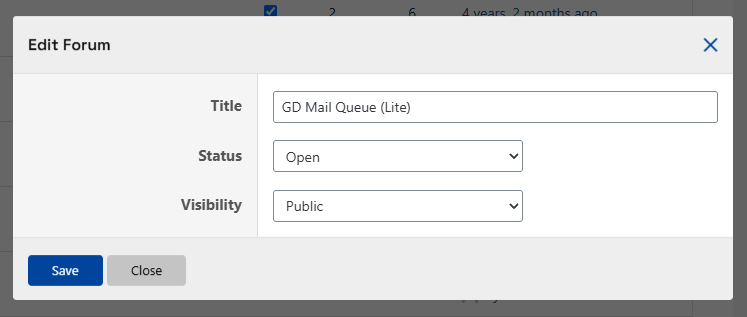
A single forum can be renamed; bulk forum editing offers status and visibility, not title. See Editing Forums.
Apply a change to several items
- In a forum or topic list, select the checkboxes beside the items to change. The toolbar displays the selected count and offers select all and select none.
- Select Edit Selected Forums or Edit Selected Topics.
- Choose the desired changes. Leave the other fields at Don’t change or their unchanged choice; leave the bulk topic author empty to skip it.
- Select Save, then inspect the affected items. Selection applies to that list, so repeat for other pages or lists as needed.
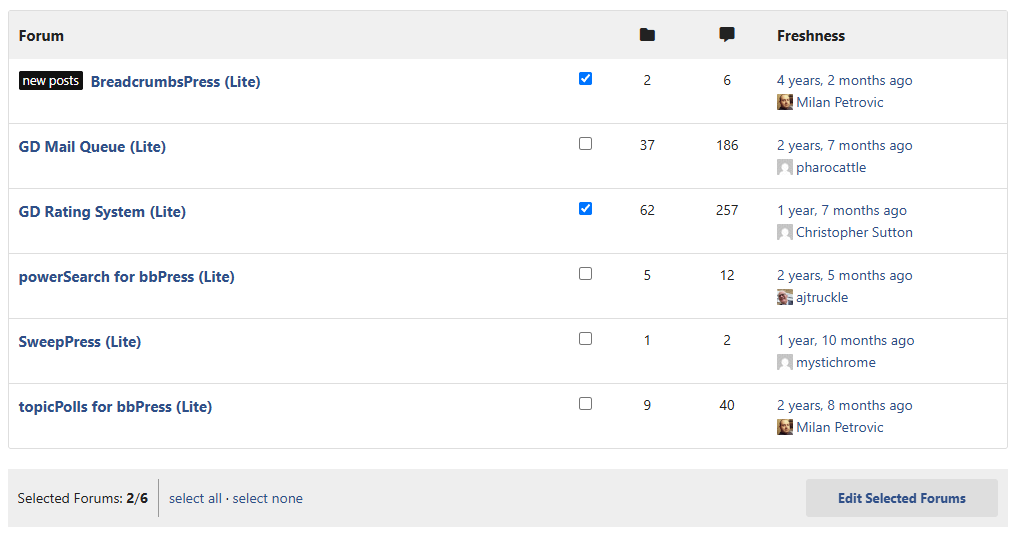
For topics, bulk editing can change forum, author, status, and sticky status, or remove tags. It cannot rename topics or assign a new tag list. Additional registered actions can add other fields.
A field error does not necessarily undo other changes. Check the current items before retrying. See Quick and Bulk Editing.
Control the interface and edit log
Enable Always show on small screens if moderators need the controls visible on mobile. Show action notices where available adds field explanations to the dialog.
To request a bbPress topic revision log entry, enable Show ‘Keep The Edit Log’ for topics controls. The topic dialog then offers a checked Keep a log of this edit box and an optional reason. A revision must be saved for a log entry to be added. See Topic Edit Log.
Troubleshoot and maintain
If controls are missing, confirm the plugin and bbPress are active, the content type and relevant moderator access are enabled, and the account is allowed. Custom templates must include the bbPress hooks used by the plugin. If a dialog does not load or save, check JavaScript and AJAX requests. Troubleshooting has further checks.
Back up before updates, keep dependencies compatible, and test representative edits after an update. Developers can add actions to the dialogs using the editor integration guide.
