
Ultimate Guide to coreSocial

coreSocial helps visitors share content, find your social profiles, and, with Pro, explore a page using AI assistants. These are related features with separate configuration and placement choices. This guide takes you through the decisions and links to the articles that explain the controls in detail.
Choose an edition and prepare the site
Start with System Requirements and Lite and Pro. Both editions provide sharing and profile display with block, Elementor, and shortcode support. Pro adds Explore, Floating Bar, additional buttons, count-based display controls, and direct bbPress integration.
Use the plugin home page for product information and pricing when choosing a Pro plan. Before installation or an edition change, keep a site/database backup.
Install, activate, and find the controls
Follow Install and Update for Lite installation, Pro upload, edition changes, and updates. Pro licensing is handled through Freemius: use License Activation, then Account and Upgrade for later account or license actions.
Open coreSocial → Overview after setup. The administration overview maps the menu, while Dashboard explains its statistics and status information. A configured plugin still needs the intended frontend placement.
Establish the initial configuration
The Setup Wizard can enable initial sharing methods, choose networks, and set common insertion options. It changes configuration when rerun. Use Settings afterward to review the saved values and configure features outside the wizard.
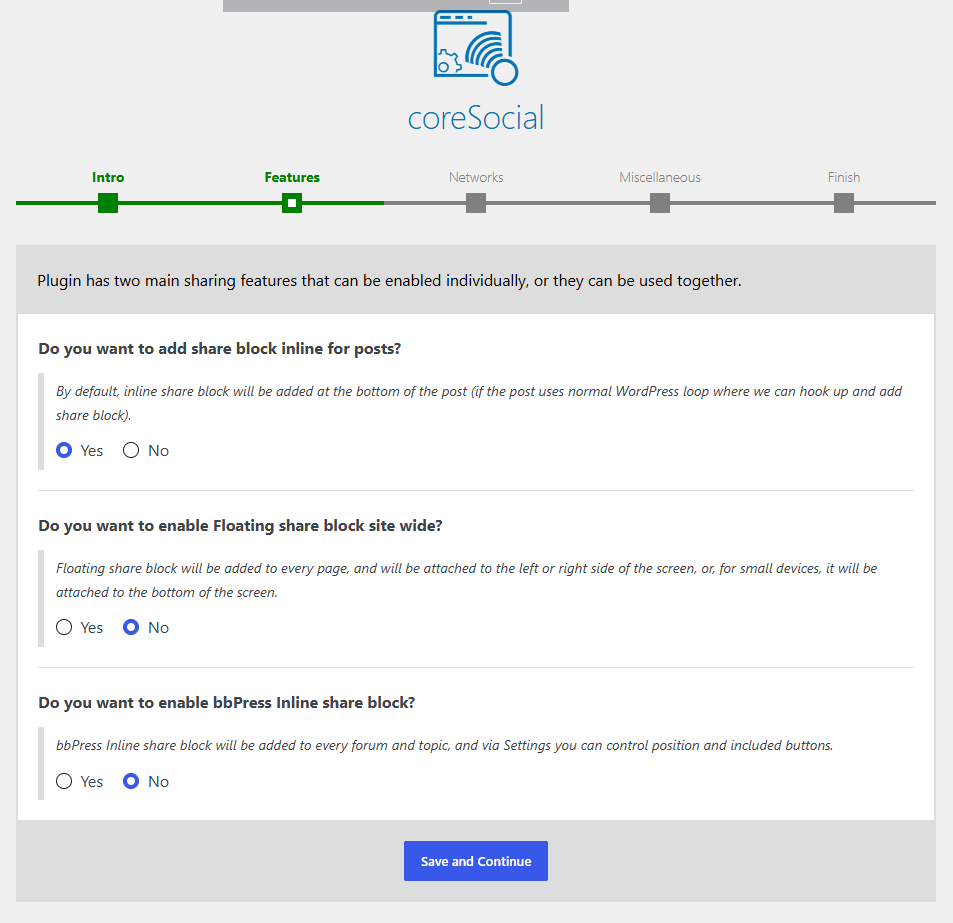
Decide which public page types need sharing and which networks matter to your visitors. Enable those methods first, then choose them for each placement. This distinction is explained in Networks and Internal Buttons.
Set up content sharing
The Sharing Content guide links together network setup, appearance, placement, and testing. Choose one suitable method for each intended location:
- Automatic insertion works with the normal singular content flow for selected post types.
- A Share block suits content and block templates.
- An Elementor Share widget suits supported Atomic editor pages/templates.
- The inline shortcode or template function suits a shortcode-enabled area or PHP integration.
Manual placement can coexist with automatic output, so check for duplicates. If a shortcode needs the inline method available but should be the only output, use the automatic Location Do not add as described in its article.
Choose styling and count behavior
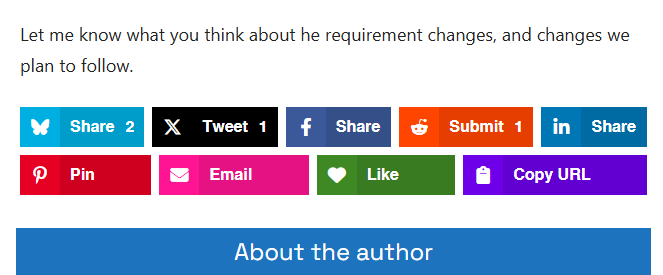
Use Inline Styling for the automatic/default inline appearance and the block/widget’s controls for saved individual placements. Explore has its own default-style inheritance. Do not assume changing one settings page overwrites every existing block or widget.
Read Counts and Logging before showing numbers. Internal clicks, online network values, individual logs, and manually entered profile followers are different things. Decide which count method is suitable and whether to hide zero values. Pro can sort share/Explore buttons by count and initially hide additional buttons behind More.
Add social profiles
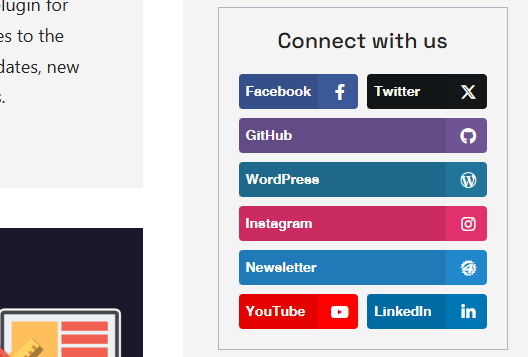
Follow Displaying Social Profiles to create records with recognizable names, correct destinations, and optional manual follower counts. Then choose a Profiles block, Elementor widget, or shortcode.
Profiles are links to your accounts, not buttons for sharing the current page. Test their actual destinations and use labels that remain understandable alongside your theme’s styling.
Offer Explore with AI
Explore requires coreSocial Pro.
The Explore guide covers provider selection, a site prompt, and placement through a block, Elementor widget, shortcode, or template function. It also explains Gemini’s copy-and-open dialog.
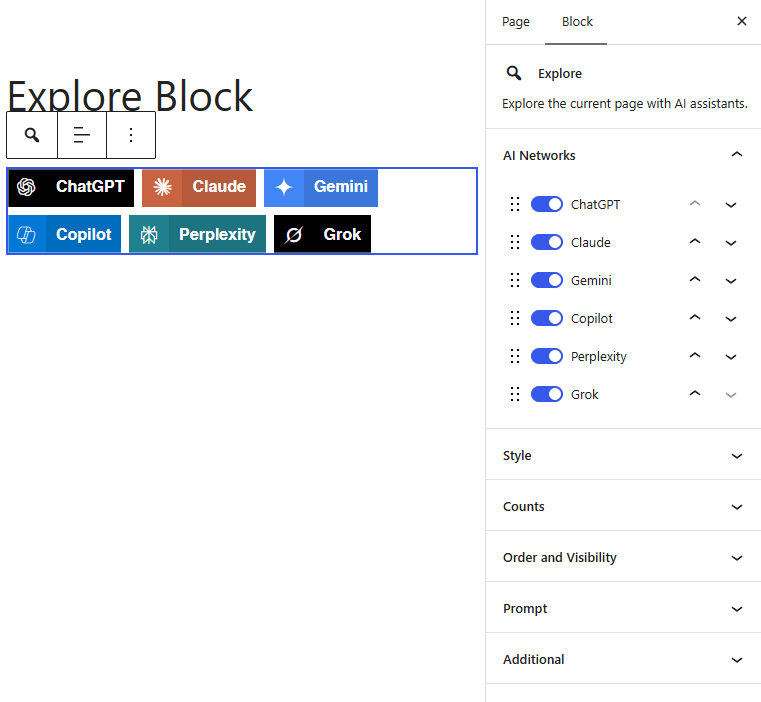
Choose a prompt that accurately describes what you want the assistant to do. The plugin supplies the title and URL, not an upload of the page contents. Providers may require sign-in or be unable to read the URL. Explore click totals do not establish a completed conversation.
Add optional automatic methods
Floating Bar and direct bbPress integration require coreSocial Pro.
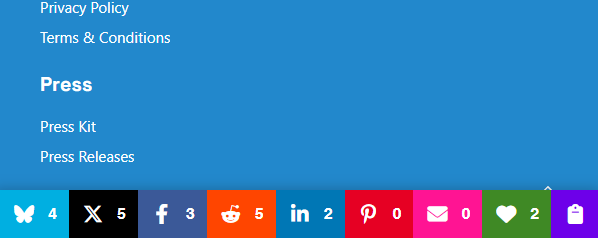
Floating Bar offers side placement, a scroll threshold, desktop tab mode, and a mobile bottom layout. Check it alongside other fixed theme controls and test both hover and keyboard interaction.
bbPress Integration adds sharing to supported forum/topic locations. Configure it separately from ordinary content insertion and check the actual bbPress template hooks used by the theme.
Verify the visitor experience
Test representative posts, pages, archives/templates, and any bbPress pages you use. Confirm the shared title and URL, profile destinations, selected networks, count visibility, and narrow layouts. A Query Loop or Elementor template needs the appropriate page/post context.
Test on the public front end rather than relying on the editor preview. Check app-dependent methods on a suitable device, and test Gemini’s copy/paste workflow if enabled. Refresh relevant caches after configuration changes.
Use FAQ for missing or duplicate buttons, counts, widgets, profiles, AI providers, and Pro access. The linked feature articles explain the checks specific to each method.
Inspect activity and maintain the plugin
Use Shared Items to inspect content-level counts and Share Logs for recorded individual actions. Turning off individual logging does not stop aggregate counting.
Tools and Maintenance explains configuration exports/imports, installation rechecks, cleanup, and reset/removal. Keep database backups for activity data and post-specific metadata. Use Account for license actions, rather than a reset tool.
Extend only where needed
When settings and placement controls do not cover a requirement, use the Developer Guide. It provides small recipes and links to the API references instead of requiring you to work through every hook. Register callbacks at the correct stage, preserve values outside your target context, and test ordinary pages as well as the customized case.
For future updates, review Changelog, keep the supported requirements, and repeat the frontend checks after changing editions, templates, integrations, or major configuration.